WordPress pluginWooCommerceMarketingFree

WooCommerce Product Badges

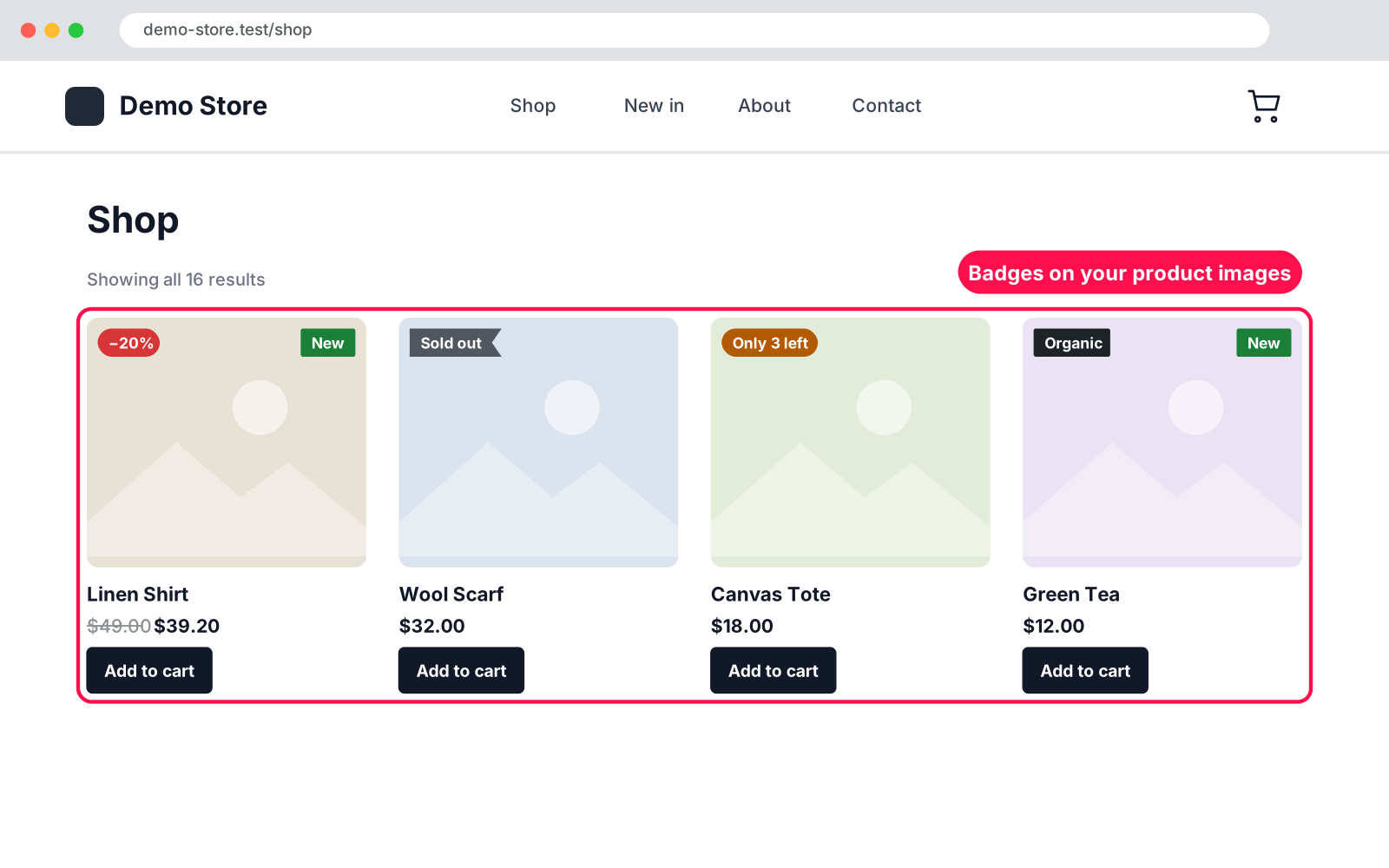
Sale, New, Out of stock, Featured and Low stock badges on your WooCommerce product images, plus your own category or tag badges. Your text, colours, shape and position.
Version 1.0.0WP 6.0+WooCommerce 8.0+PHP 7.4+Updated Nov 2026Downloads 0

What it does 01

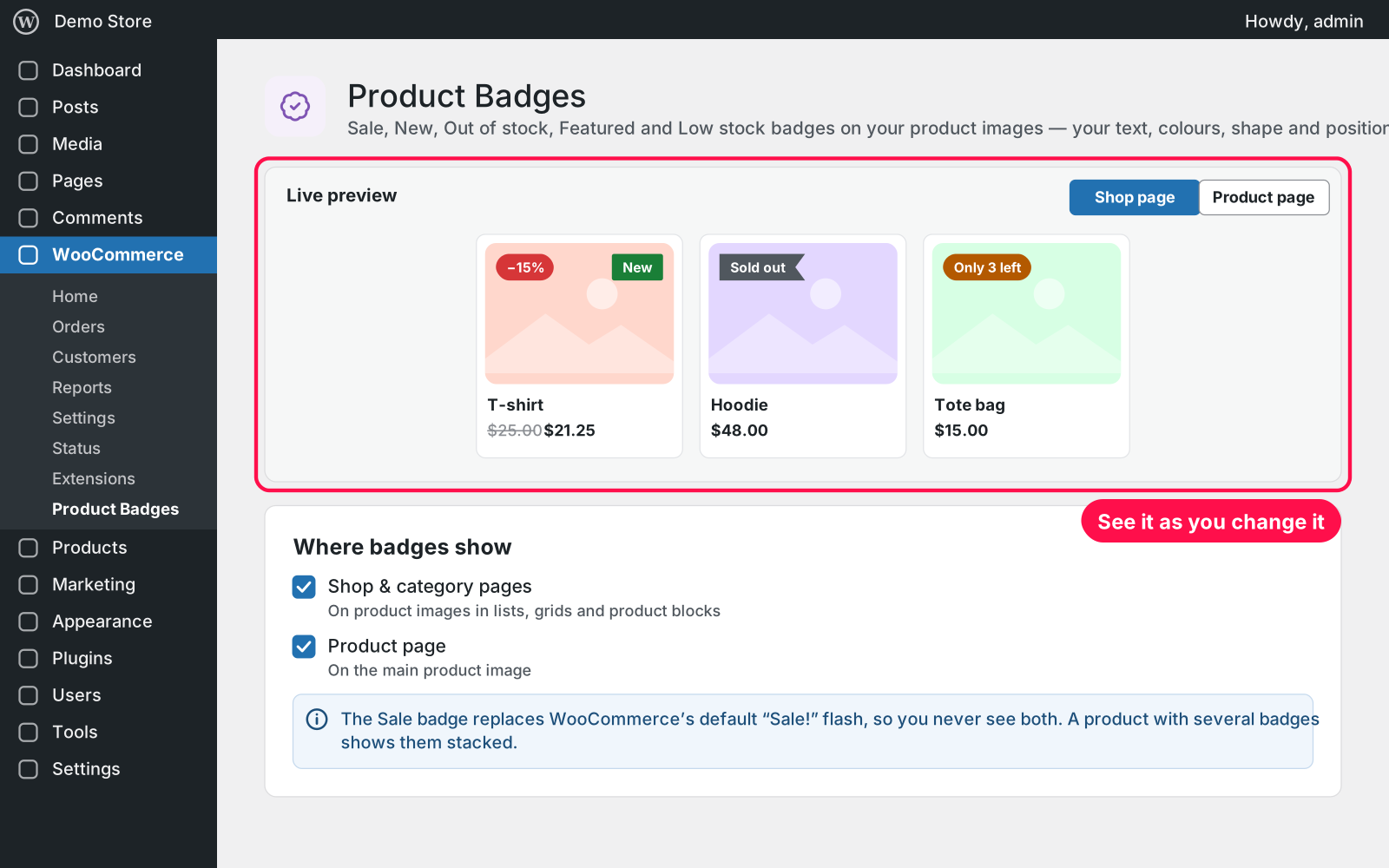
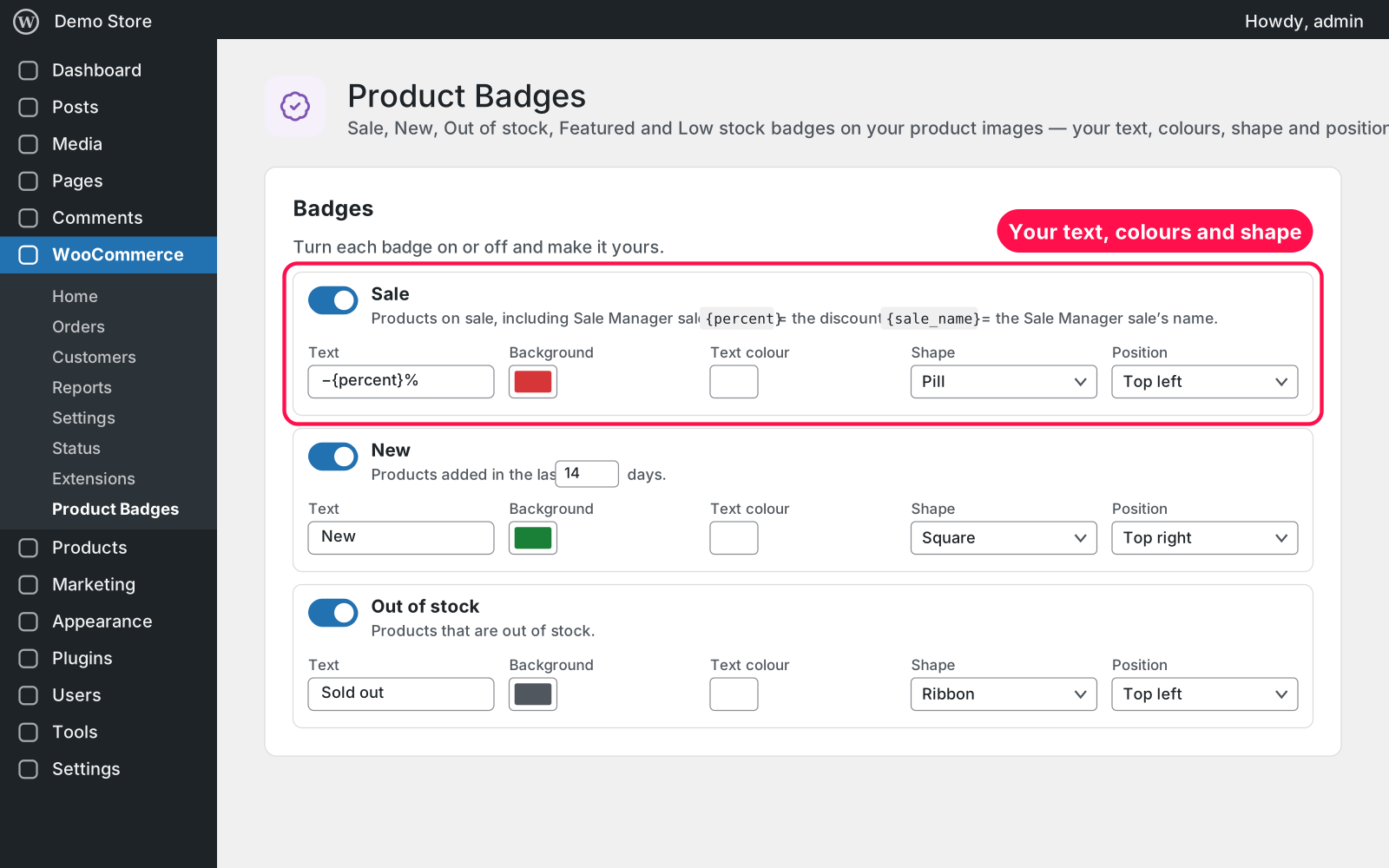
Puts clear, good-looking badges on your product images so shoppers spot deals, new arrivals and last items at a glance. Turn each badge on or off and make it match your store: text, background colour, text colour, shape and position, with a live preview while you change them.

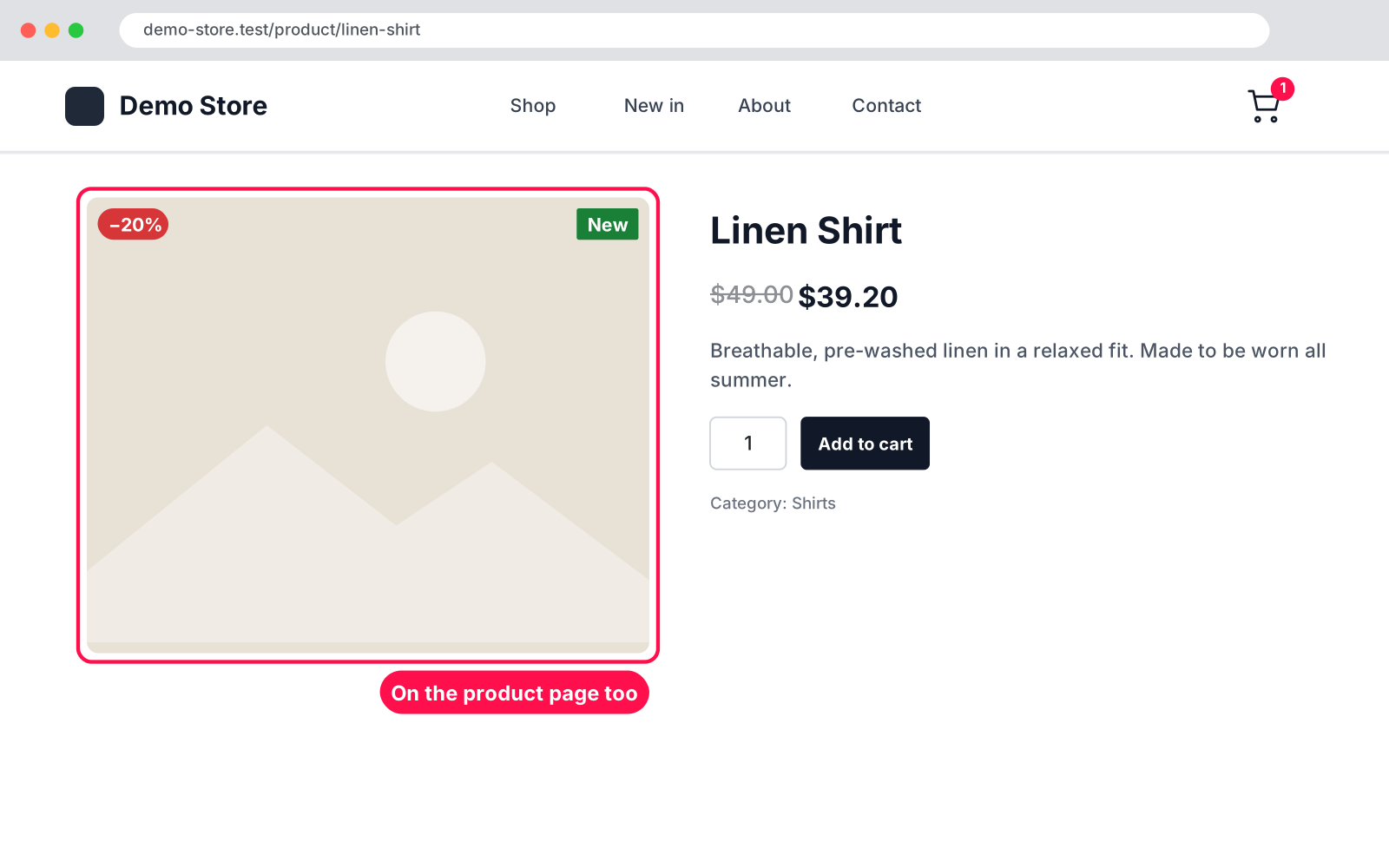
  • Sale: shows the real discount, e.g. "−20%", using {percent}.
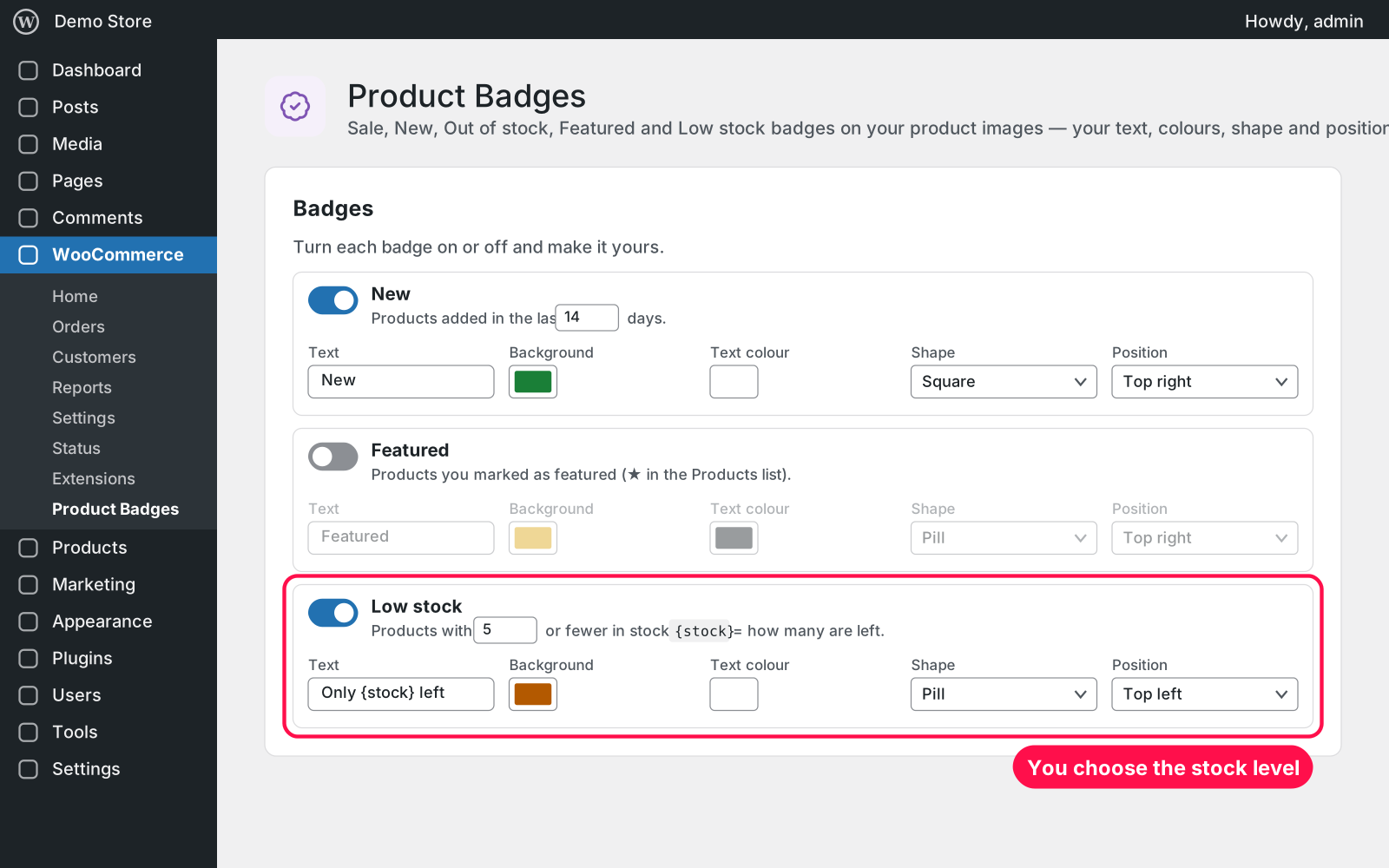
  • New: for products added in the last 14 days (you choose the number).
  • Out of stock and Featured: an Out of stock badge ("Sold out") and a Featured badge.
  • Low stock: e.g. "Only 3 left", for 5 or fewer in stock (you choose the number).
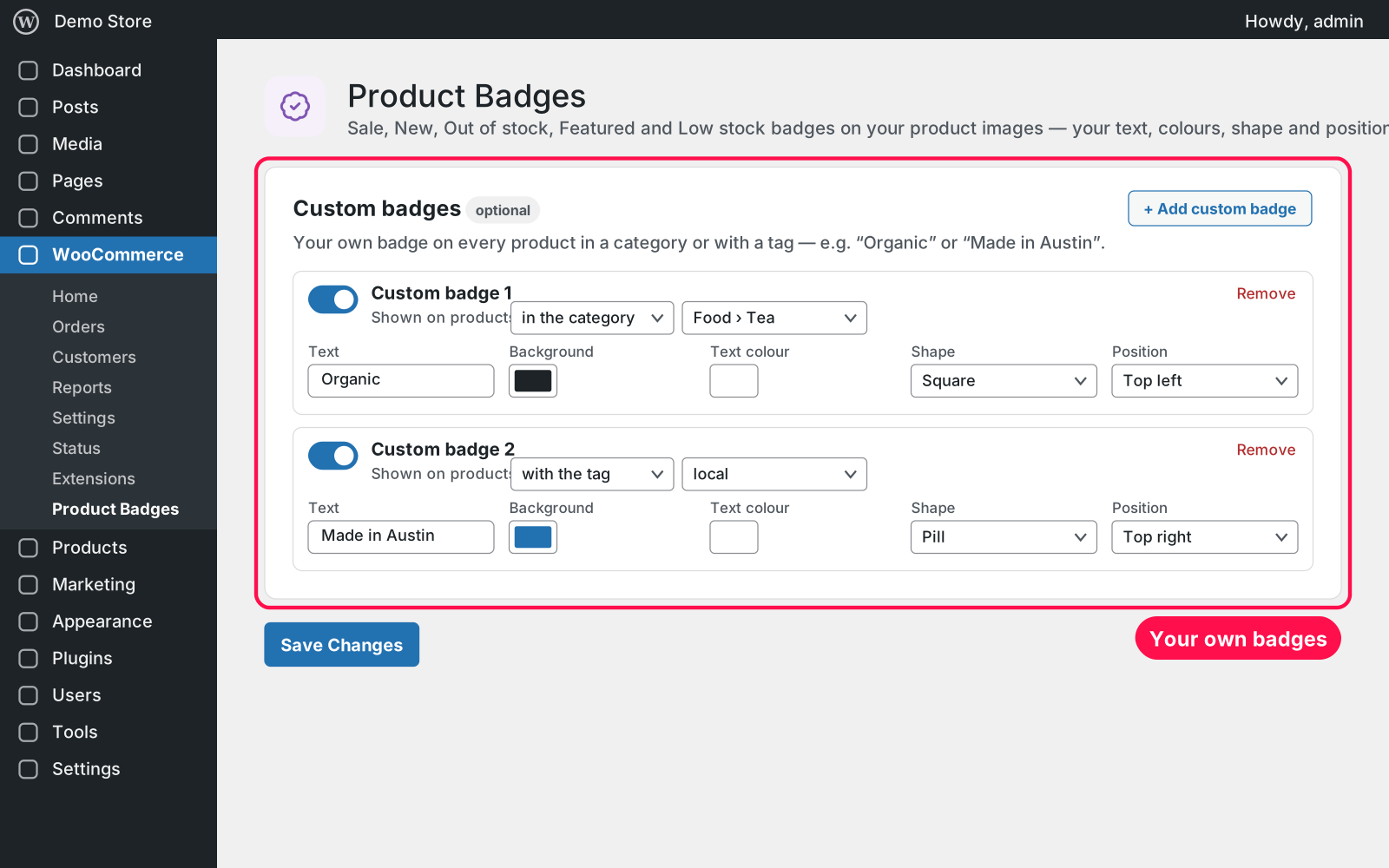
  • Custom badges: your own badges for every product in a category or with a tag, e.g. "Organic".
  • Shapes: four shapes (pill, square, circle and ribbon); top left or top right.
  • Stacking: several badges on one product stack neatly.
  • Where it shows: shop and category pages, the product page, or both.
  • No double badge: replaces WooCommerce's "Sale!" flash where badges show, so you never see both.
  • Themes: works with classic and block themes, including the Product Collection and product image blocks.
  • Sale Manager: with Arock Sale Manager, the Sale badge can show the sale's name ({sale_name}).
  • Lightweight: its small stylesheet loads only on pages that show a badge.

Setup 02 · about 2 minutes

  1. Install & Activate it. In WordPress go to Plugins → Add New → Upload Plugin, choose the .zip and click Install Now, then Activate. The default badges show right away.
  2. Open the settings. Go to WooCommerce › Product Badges.
  3. Make them yours. Turn badges on or off and set their text, colours, shape and position — the live preview shows the result.
  4. Save. Click Save Changes.

FAQ 03

Does it work with my theme?

Yes. It works with classic themes (shop loop and product gallery) and block themes (Product Collection, product image and gallery blocks, and the older product grid blocks).

Will I see two sale badges?

No. Wherever the badges show, WooCommerce's own "Sale!" flash and Sale Badge block are hidden.

Does it work with page caching?

Yes. Badges are part of the page. "New" and stock badges update when your cache refreshes, so clear the cache after big stock changes.

What happens to my data when I delete the plugin?

Your badge settings are kept, because Arock Toolkit and other versions of this plugin use the same ones. Your products are never changed.

Changelog 04

1.0.0Nov 14, 2026 · Latest
  • - First release as a standalone plugin (the same tool as in Arock Toolkit, with the same settings).
Need it to do something else?

I customize plugins and build new ones from scratch — same care, made for your site.

Ask me

Comments

Every comment is reviewed before it appears.

No comments yet — questions, ideas and bug reports are all welcome.

Leave a comment

Replying to
Comments are moderated and appear once approved. Your email is only used to notify you of replies.
Thanks! Your comment is awaiting moderation and will appear once it's approved.
Scripts & plugins

More plugins.

All scripts & plugins →
WordPressPremium

Arock Wordpress + WooCommerce Toolkit

20 small WordPress and WooCommerce tools in one lightweight plugin. Switch each tool on or off from one page; only the tools you turn on run.

Buy →
WordPress

WooCommerce Direct Checkout

Skip the cart: "Add to cart" becomes "Checkout" and takes customers straight to checkout. Ideal for one-product stores and quick buys.
FreeDownload ↓
WordPress

WooCommerce Cross-Sell Popup

When a shopper adds a product to the cart, a popup offers that product's cross-sells with a quantity box and an "Add to order" button. Uses WooCommerce's own Cross-sells field.

FreeDownload ↓