Home/Scripts & plugins/WordPress/Free Shipping Bar
WordPress pluginWooCommerceShippingMarketingShortcodeFree

WooCommerce Free Shipping Bar

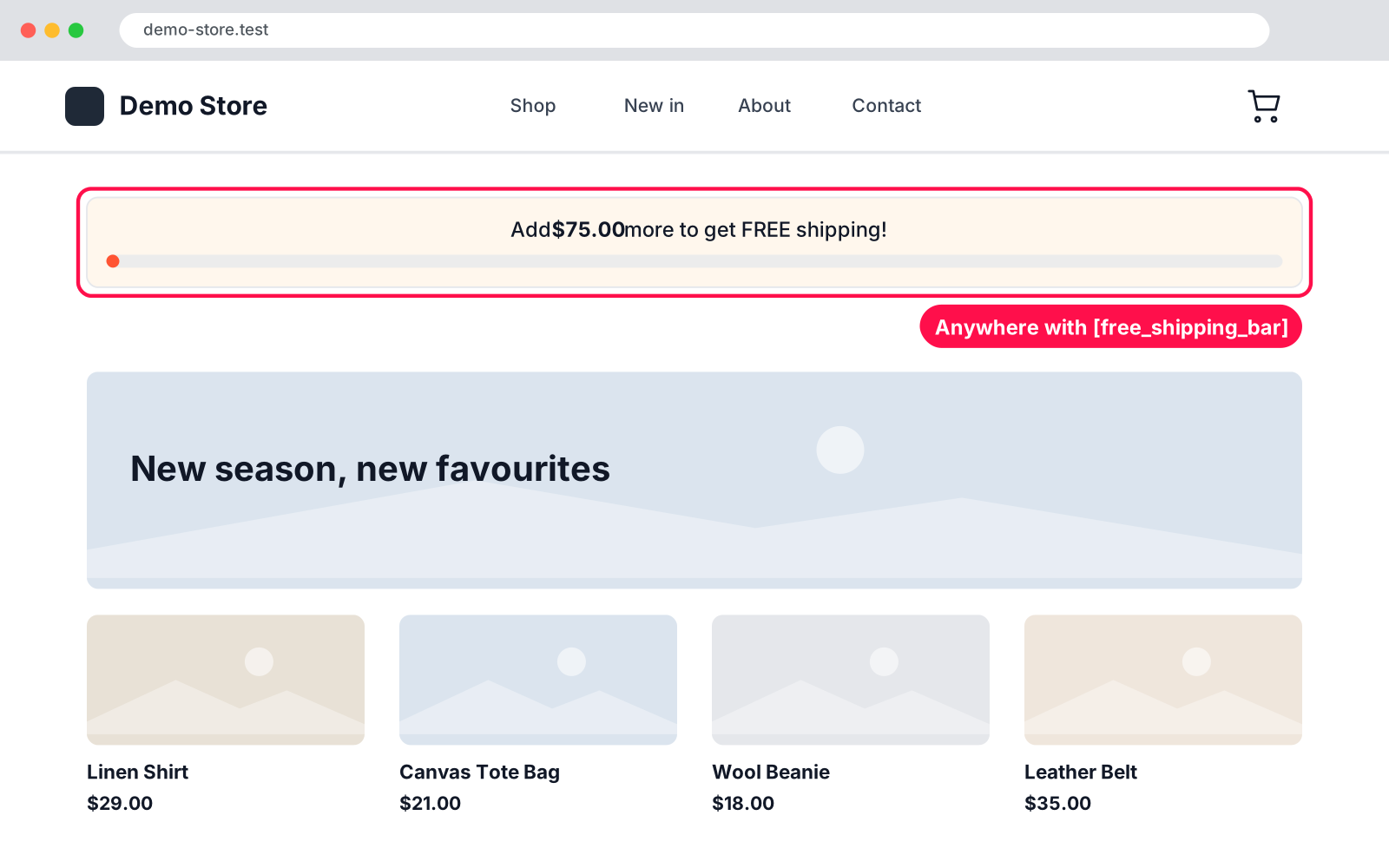
Show "Add $12.50 more to get FREE shipping!" with a progress bar on cart, checkout, mini cart or product pages. Uses your WooCommerce free shipping minimum.
Version 1.0.0WP 6.0+WooCommerce 8.0+PHP 7.4+Updated Nov 2026Downloads 0

What it does 01

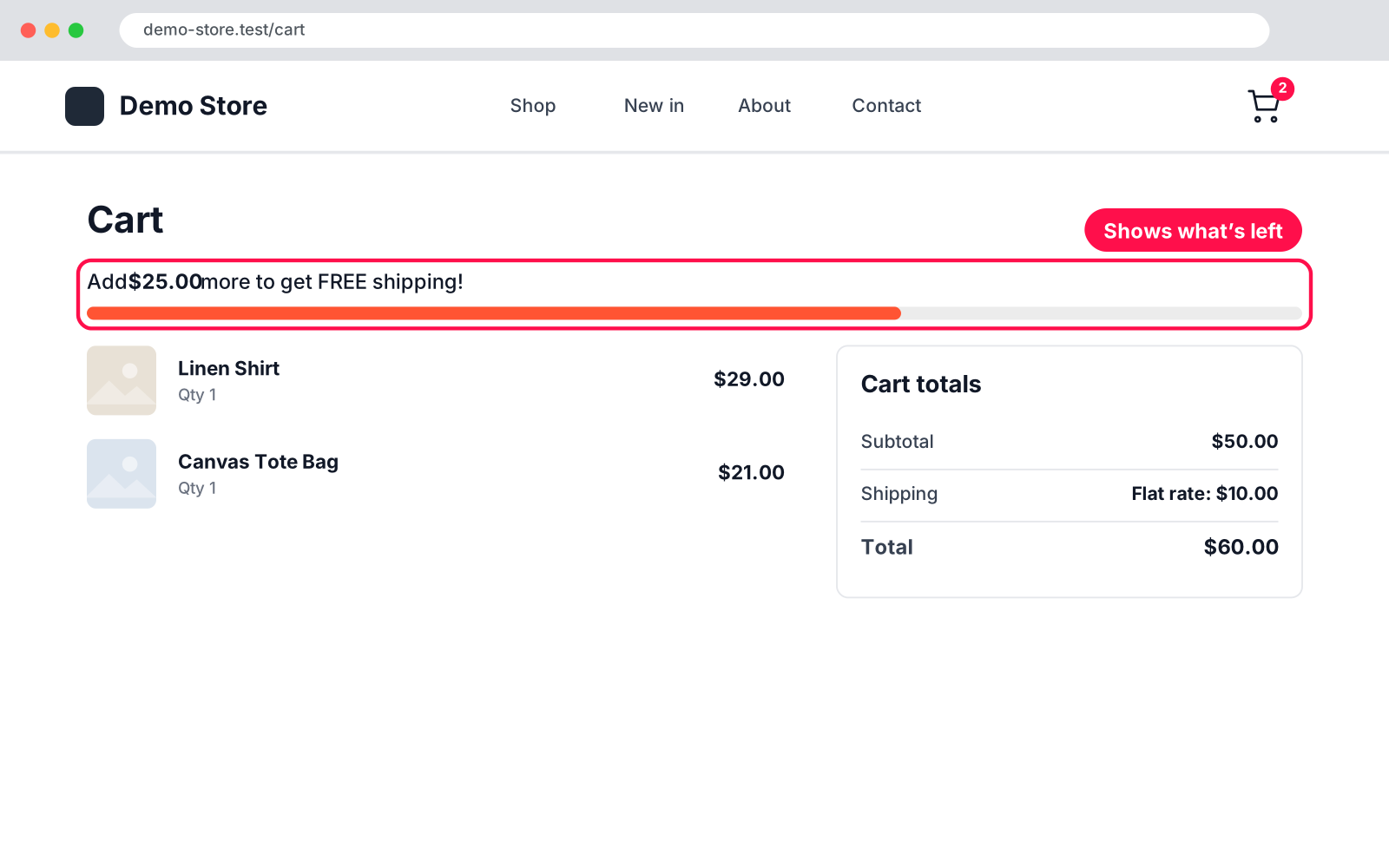
Tells shoppers exactly how much more they need to spend to get free shipping, with a progress bar that fills up as they add to the cart. The amount comes straight from your WooCommerce Free Shipping method, and the cart is counted the same way WooCommerce counts it, so the bar never promises free shipping the customer won't get.

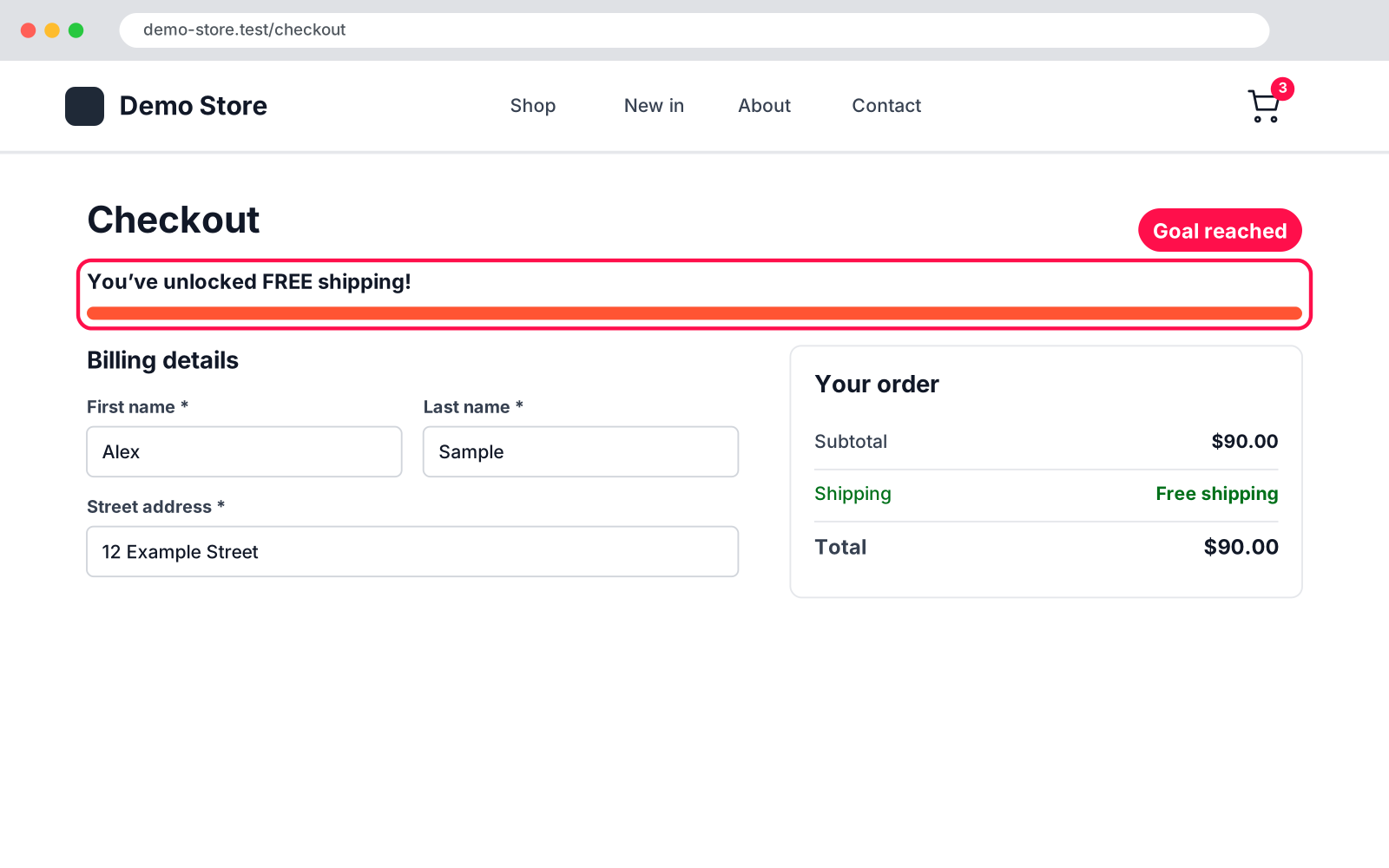
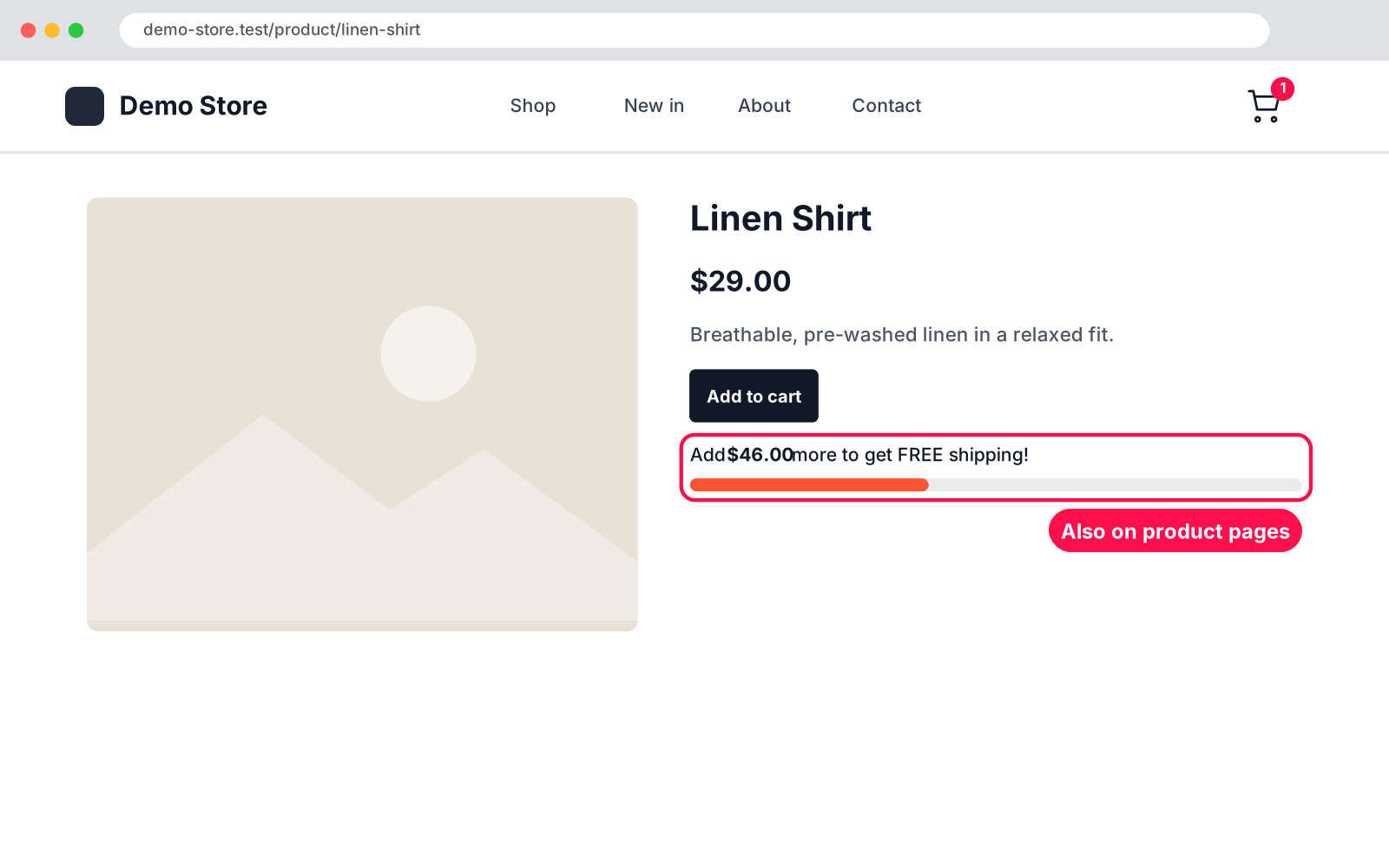
  • Message: "Add $12.50 more to get FREE shipping!" on the Cart and Checkout pages, classic or block.
  • Goal reached: changes to "You've unlocked FREE shipping!" once the goal is reached.
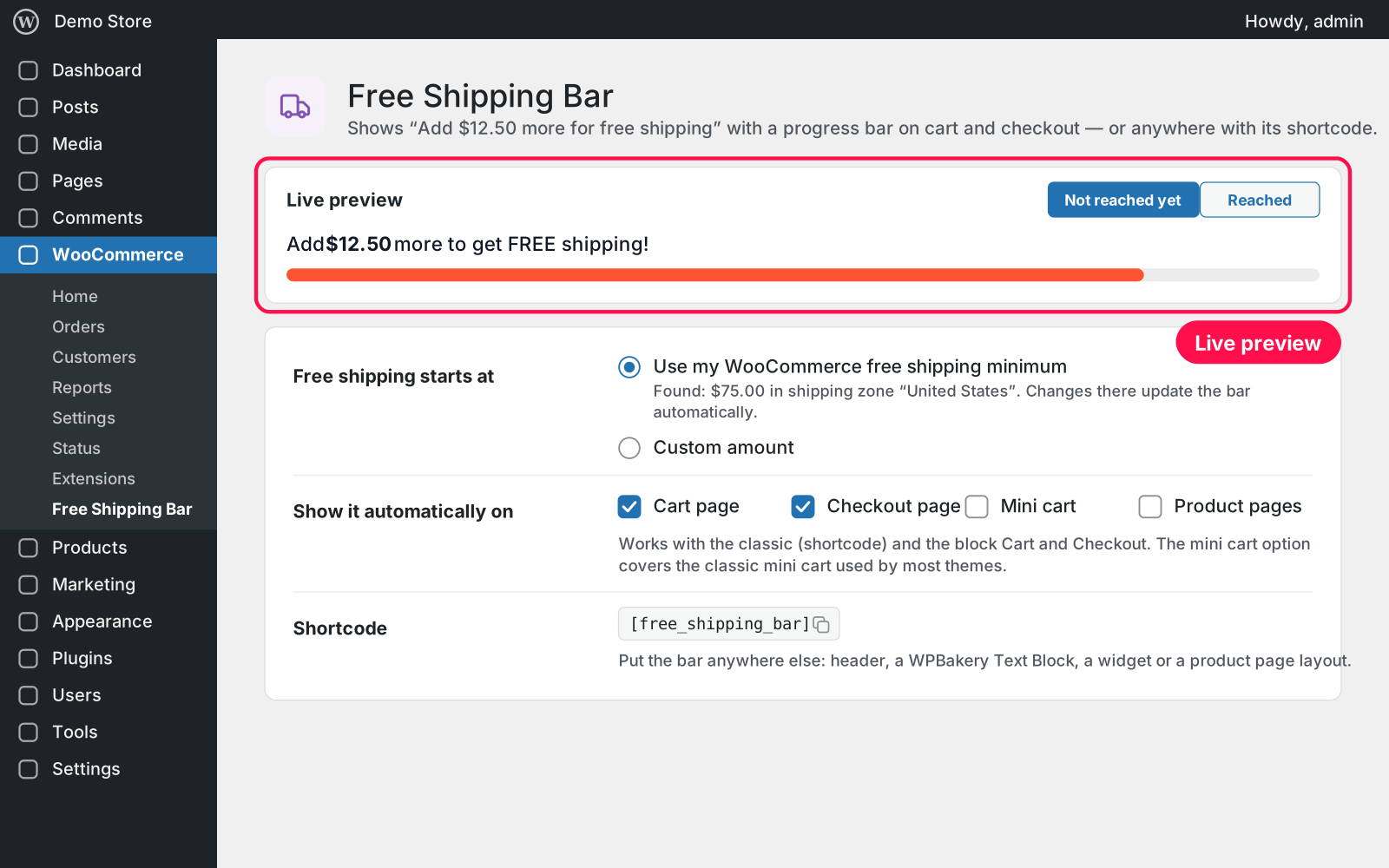
  • Amount: uses the free shipping minimum of the customer's own shipping zone, or a custom amount you type in.
  • Counted like WooCommerce: with or without tax, and coupons as your Free Shipping method is set up.
  • More places: also in the mini cart and on product pages, if you like.
  • Shortcode: put it anywhere else with [free_shipping_bar]: header, page builder, widget.
  • Live: updates when the cart changes, without a page reload.
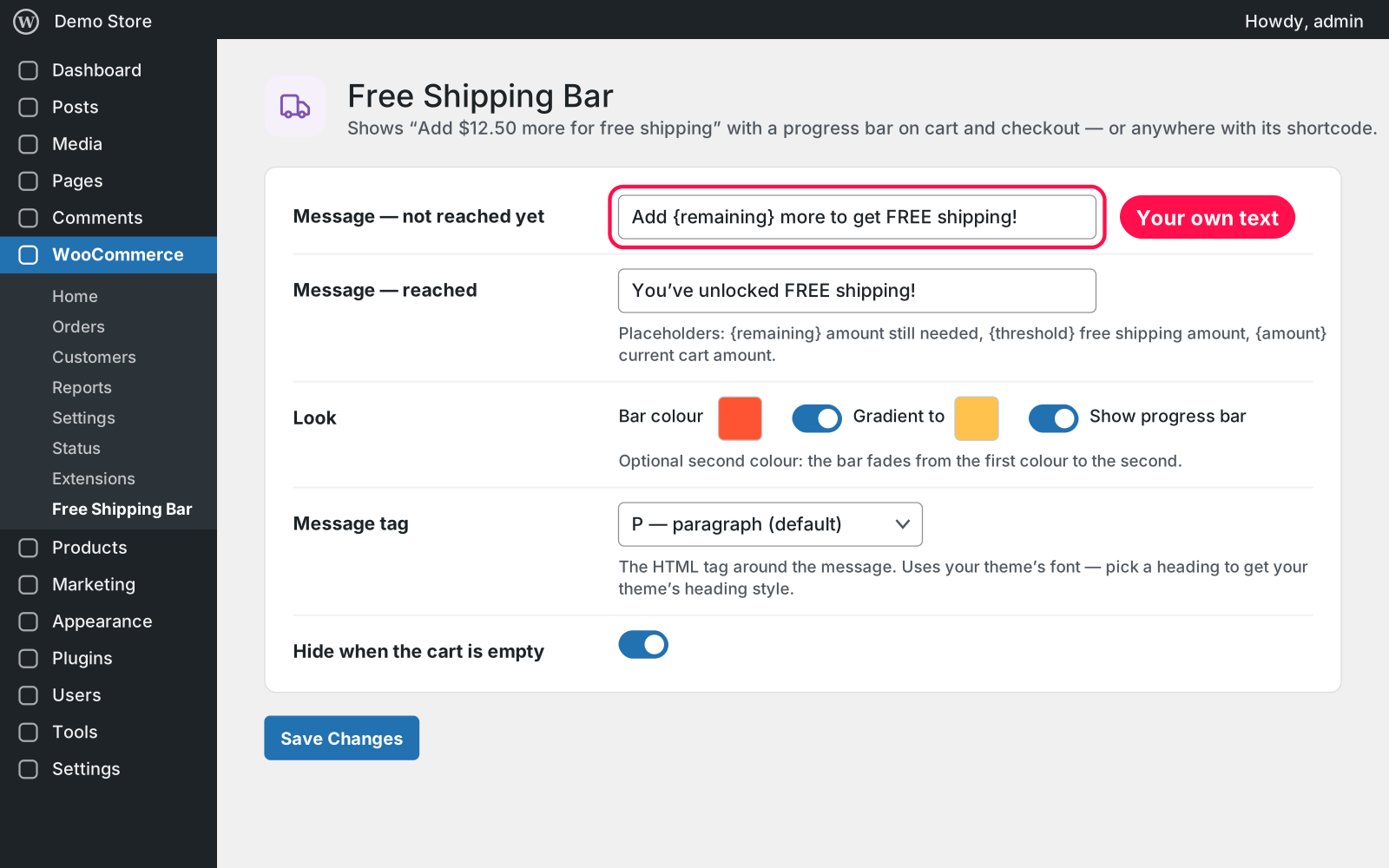
  • Your messages: write both messages yourself, with {remaining}, {threshold} and {amount} placeholders.
  • Look: pick the bar colour, an optional gradient, and whether to show the progress bar at all.
  • Typography: uses your theme's font; choose the HTML tag (paragraph or a heading) to match your style.
  • Hides itself: when the cart is empty, needs no shipping, or the customer's zone has no free shipping.
  • Currency switchers: works with FOX / WOOCS. Live preview on the settings page.

Setup 02 · about 2 minutes

  1. Install & Activate it. In WordPress go to Plugins → Add New → Upload Plugin, choose the .zip and click Install Now, then Activate.
  2. Check your free shipping. In WooCommerce › Settings › Shipping, give your Free Shipping method a minimum order amount (or use a custom amount in the plugin).
  3. Open the settings. Go to WooCommerce › Free Shipping Bar to choose where it shows, your messages and colours.
  4. Save. Click Save Changes — the bar is live on your cart and checkout.

FAQ 03

Does it work with the block Cart and Checkout?

Yes. It works with both the classic (shortcode) and the block Cart and Checkout, and updates live on both.

Where does the free shipping amount come from?

From the Free Shipping method in WooCommerce › Settings › Shipping (the customer's own zone). You can also type a custom amount.

Does it work with page caching?

Yes. Cart and checkout pages are normally left out of page caching, so the bar is always up to date there; elsewhere it refreshes when the cart changes.

Which themes does it work with?

Any theme that uses WooCommerce's standard cart, checkout and product templates or blocks. The text uses your theme's font.

What happens to my settings when I delete the plugin?

They're kept, because Arock Toolkit and other versions of this plugin use the same settings.

Changelog 04

1.0.0Nov 15, 2026 · Latest
  • - First release as a standalone plugin (the same tool as in Arock Toolkit, with the same settings).
Need it to do something else?

I customize plugins and build new ones from scratch — same care, made for your site.

Ask me

Comments

Every comment is reviewed before it appears.

No comments yet — questions, ideas and bug reports are all welcome.

Leave a comment

Replying to
Comments are moderated and appear once approved. Your email is only used to notify you of replies.
Thanks! Your comment is awaiting moderation and will appear once it's approved.
Scripts & plugins

More plugins.

All scripts & plugins →
WordPressPremium

Arock Wordpress + WooCommerce Toolkit

20 small WordPress and WooCommerce tools in one lightweight plugin. Switch each tool on or off from one page; only the tools you turn on run.

Buy →
WordPress

WooCommerce Direct Checkout

Skip the cart: "Add to cart" becomes "Checkout" and takes customers straight to checkout. Ideal for one-product stores and quick buys.
FreeDownload ↓
WordPress

WooCommerce Cross-Sell Popup

When a shopper adds a product to the cart, a popup offers that product's cross-sells with a quantity box and an "Add to order" button. Uses WooCommerce's own Cross-sells field.

FreeDownload ↓