Home/Scripts & plugins/WordPress/Checkout Field Manager
WordPress pluginWooCommerceProductivityFree

WooCommerce Checkout Field Manager

Rename, hide, reorder, resize and add WooCommerce checkout fields with a live preview. Billing, shipping and order notes, on the classic and block checkout.
Version 1.0.0WP 6.0+WooCommerce 8.9+PHP 7.4+Updated Nov 2026Downloads 0

What it does 01

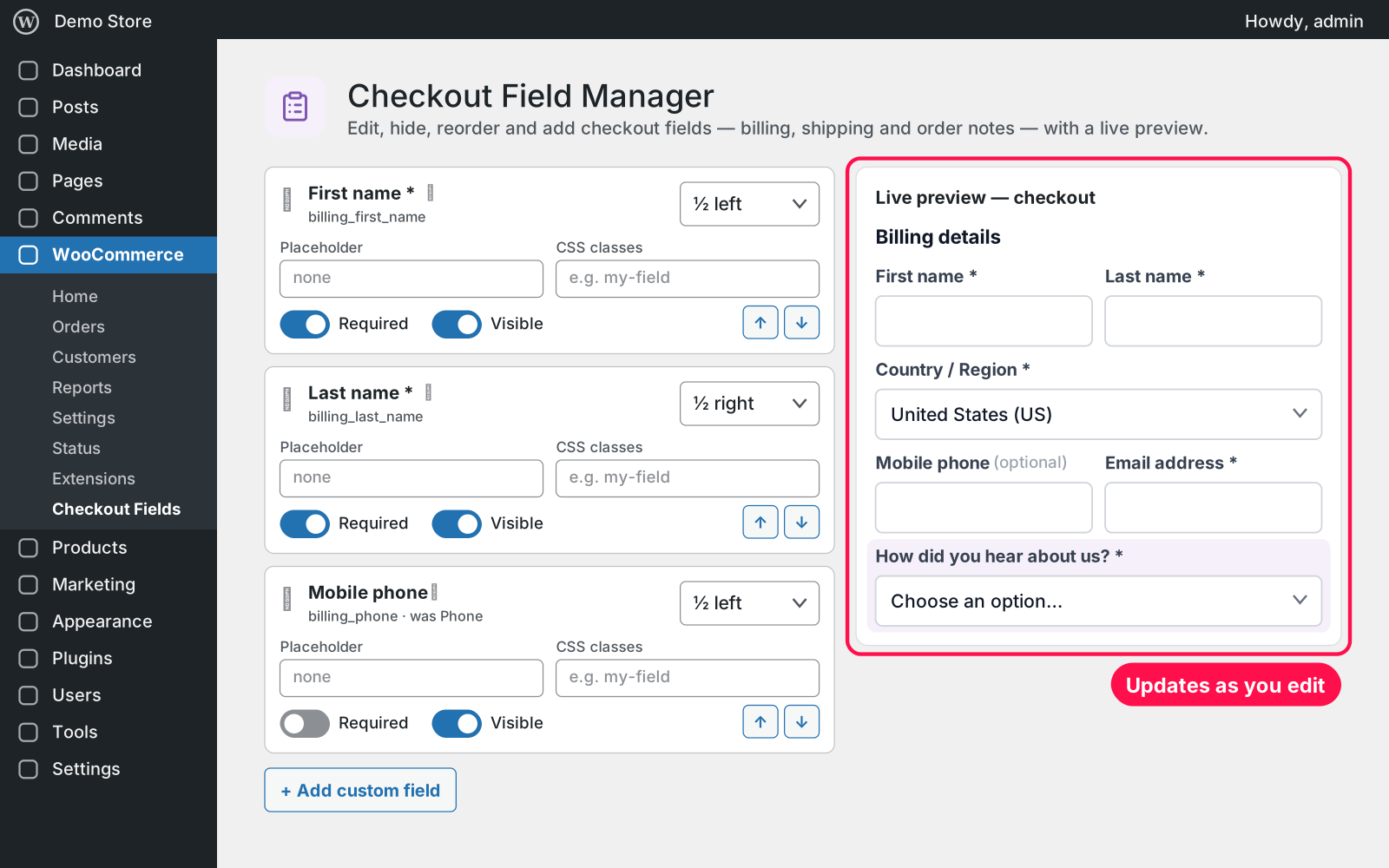
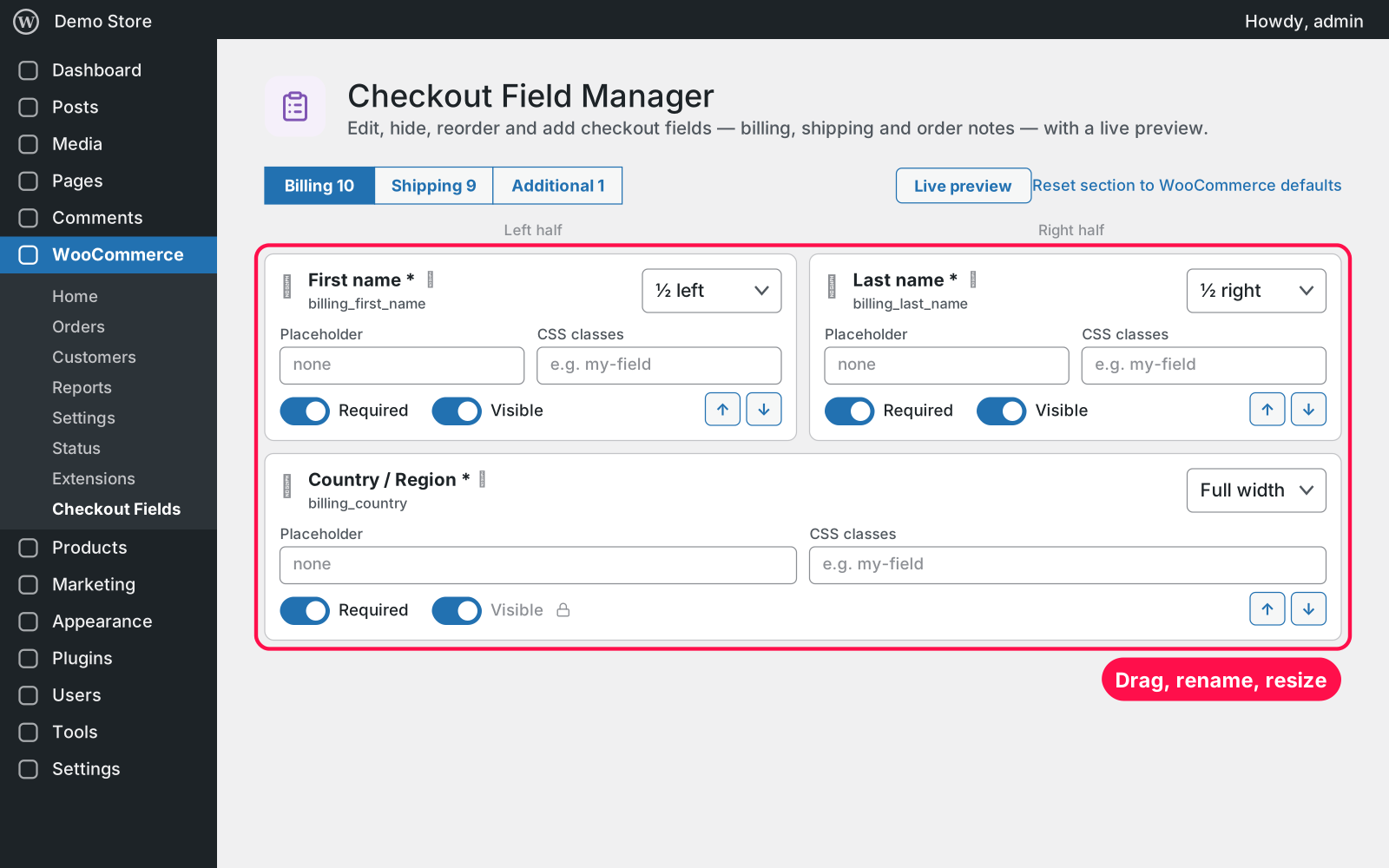
Shows your checkout form as cards, one tab each for Billing, Shipping and Additional (order notes). Rename, hide, move and resize WooCommerce's own fields, or add your own, and watch the live preview update as you go. On the classic checkout everything works; on the block checkout it uses WooCommerce's own supported route.

  • Rename: rename any field and change its placeholder.
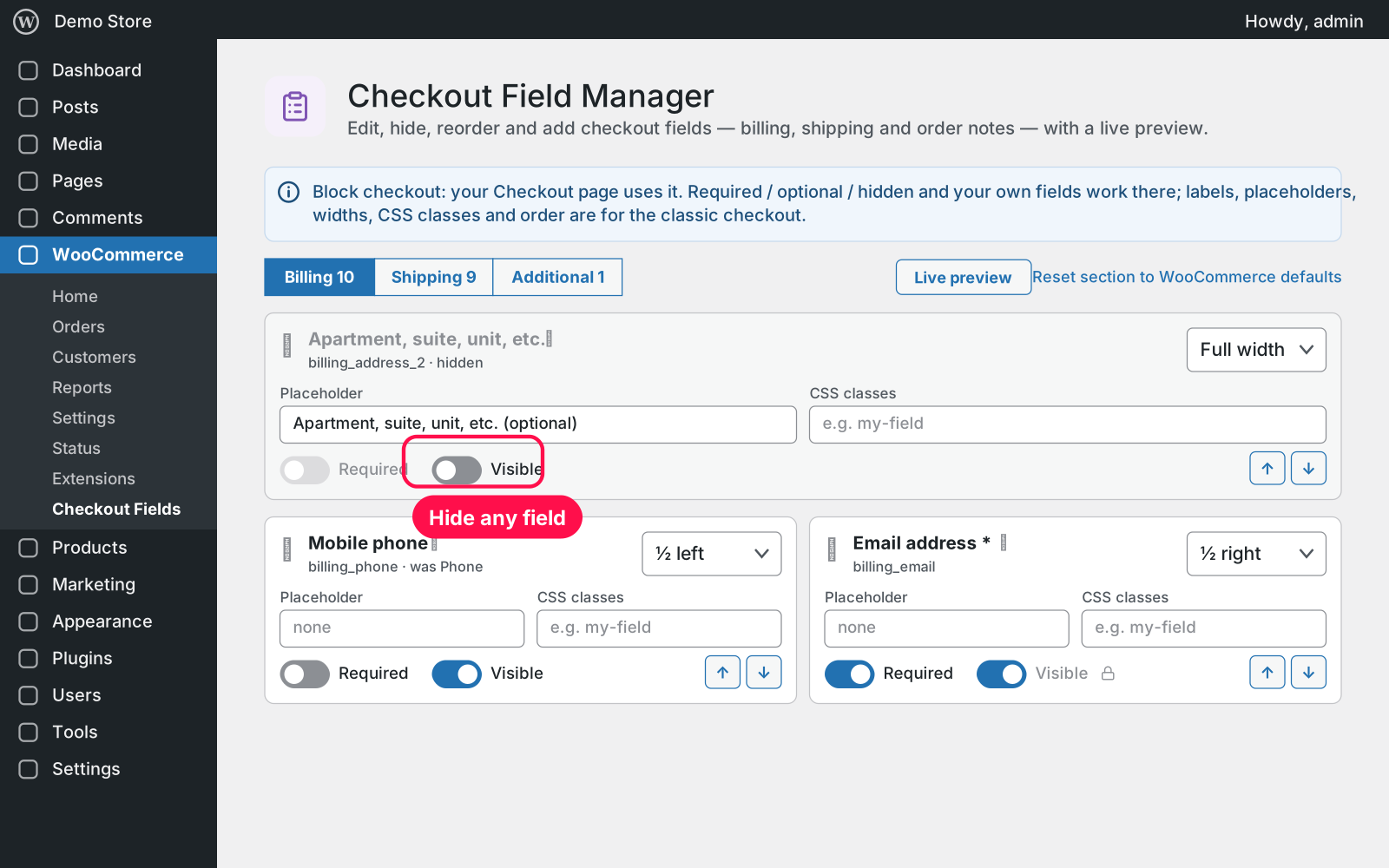
  • Hide or require: hide the fields you don't need, or make them required or optional.
  • Reorder: drag and drop, or use the ↑ ↓ buttons.
  • Width: full width or half width, so you can put two fields side by side.
  • CSS classes: add your own classes to any field.
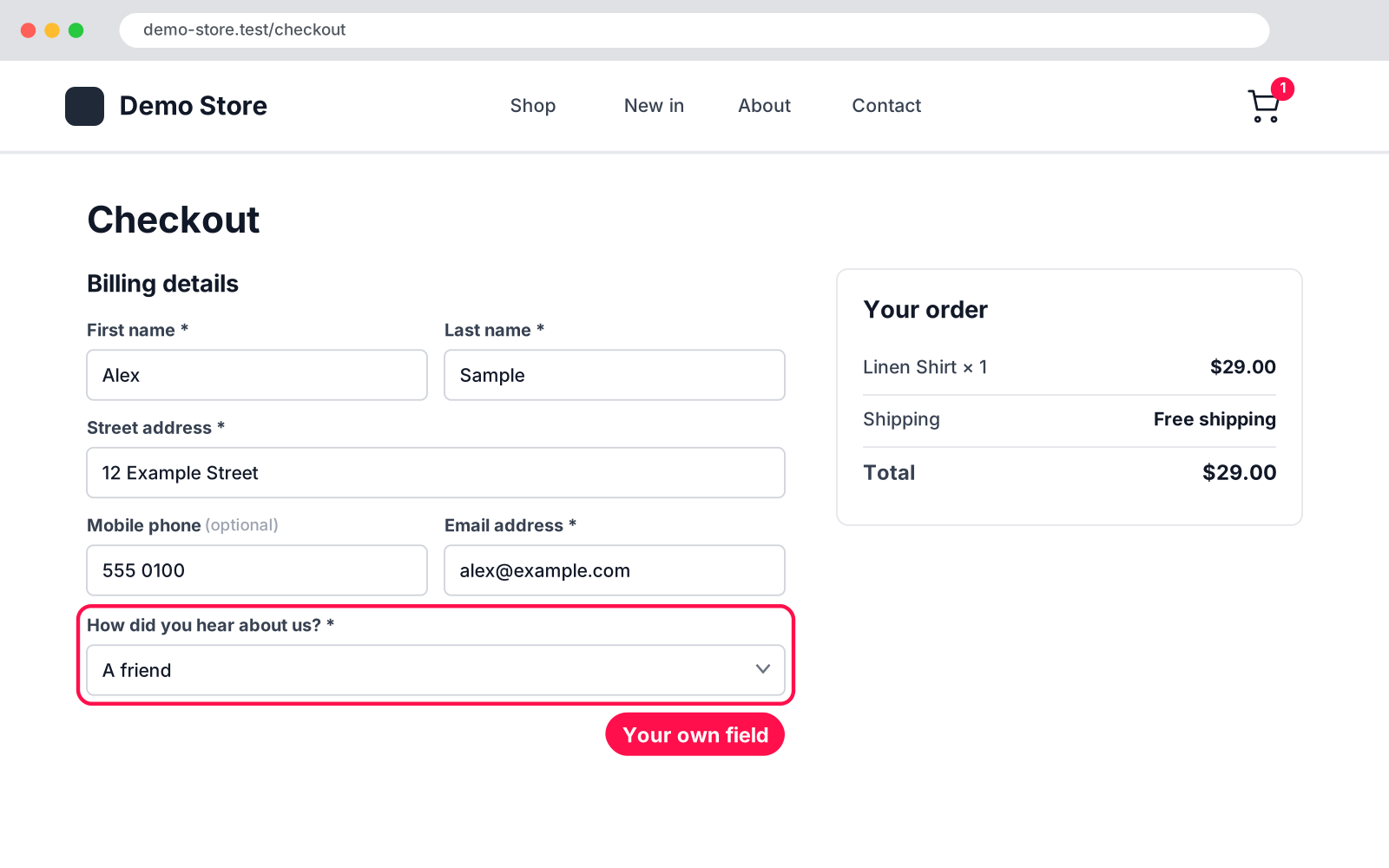
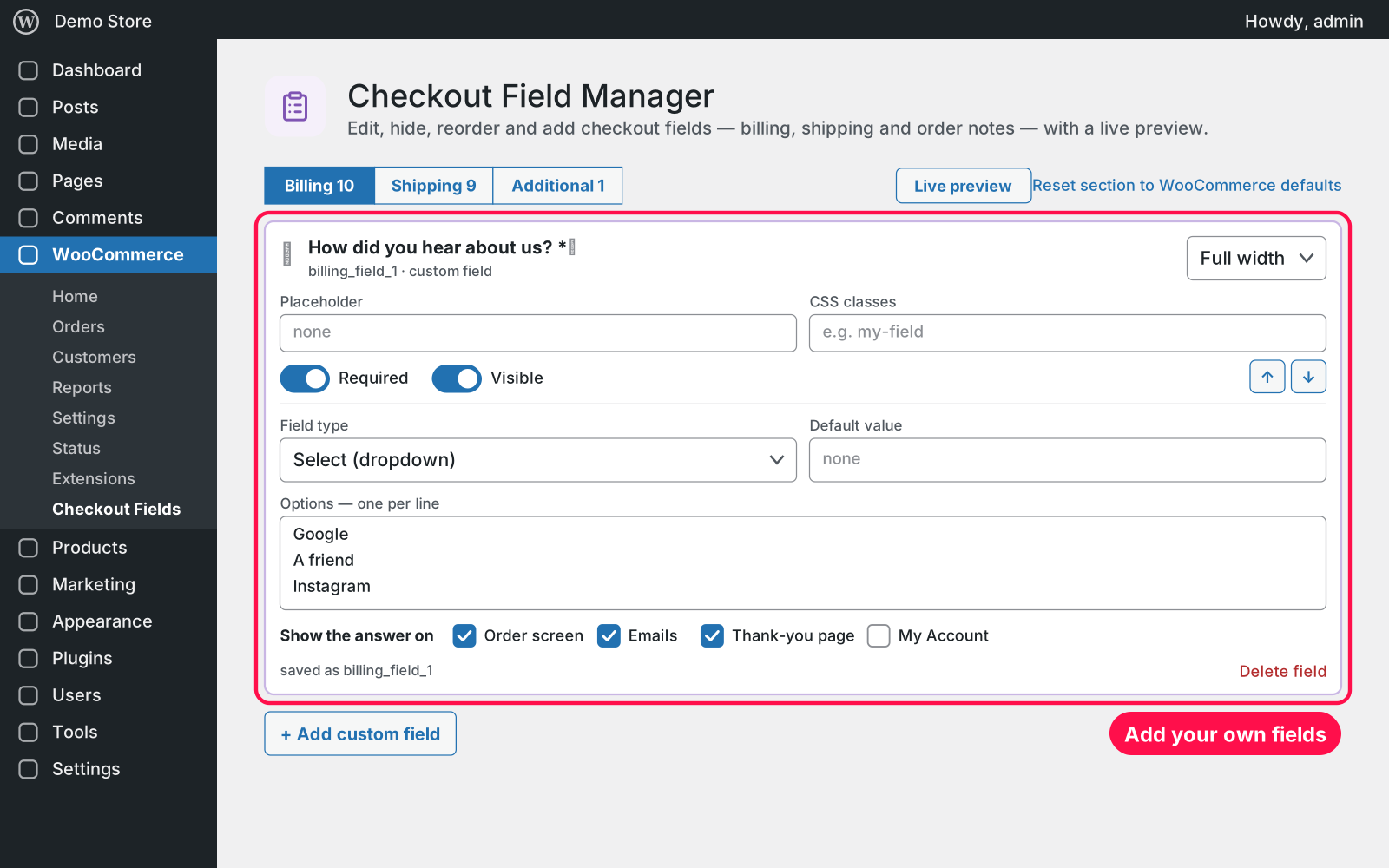
  • Your own fields: text, text area, email, phone, number, dropdown, radio buttons, checkbox or date.
  • Defaults and options: set default values, and write dropdown or radio options one per line.
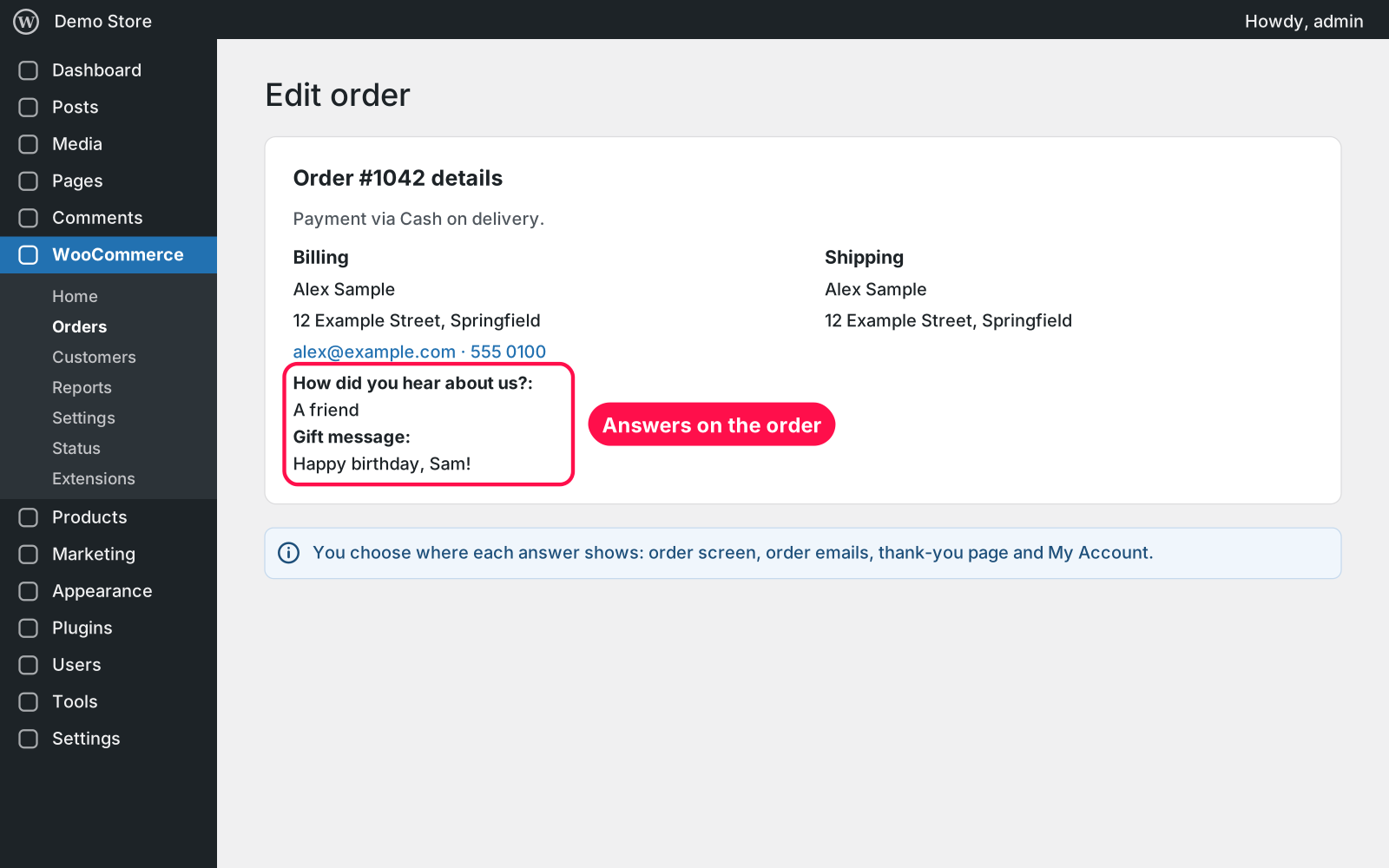
  • Where it shows: choose where each answer appears: order screen, order emails, thank-you page and My Account.
  • Live preview: see the checkout form while you edit.
  • Reset: reset a section to WooCommerce's defaults in one click.
  • Block checkout: required / optional / hidden for address fields, and your own fields through WooCommerce's Additional Checkout Fields API.
  • Checkout type: the settings page tells you whether your Checkout page uses the classic or the block checkout.

Setup 02 · about 3 minutes

  1. Install & Activate it. In WordPress go to Plugins → Add New → Upload Plugin, choose the .zip and click Install Now, then Activate.
  2. Open the editor. Go to WooCommerce › Checkout Fields and pick the Billing, Shipping or Additional tab.
  3. Edit your fields. Click a label to rename it, drag cards to move them, switch Required or Visible on or off.
  4. Add your own. Click "+ Add custom field", choose its type and where the answer shows.
  5. Save. Check the live preview and click Save Changes.

FAQ 03

Does it work with the block checkout?

Partly, as far as WooCommerce allows. Required / optional / hidden for address fields and your own fields work there (text, dropdown, checkbox and date; other types become text, radio buttons a dropdown). Labels, placeholders, widths, CSS classes and order are for the classic checkout. On the block checkout an address field change applies to billing and shipping alike.

Can I delete WooCommerce's own fields?

You can hide them, which removes them from the checkout. Email and country can't be hidden, because WooCommerce needs them.

Does it work with page caching?

Yes. Checkout pages aren't cached by caching plugins, so your changes show right away.

Where do I see the answers to my own fields?

Where you choose per field: on the order screen, in order emails, on the thank-you page and in My Account.

What happens to my data when I delete the plugin?

The answers saved on orders are never touched. Deleting the plugin keeps your field settings too, because Arock Toolkit and other versions of this plugin share them.

Changelog 04

1.0.0Nov 14, 2026 · Latest
  • - First release as a standalone plugin (the same tool as in Arock Toolkit, with the same settings and saved answers).
Need it to do something else?

I customize plugins and build new ones from scratch — same care, made for your site.

Ask me

Comments

Every comment is reviewed before it appears.

No comments yet — questions, ideas and bug reports are all welcome.

Leave a comment

Replying to
Comments are moderated and appear once approved. Your email is only used to notify you of replies.
Thanks! Your comment is awaiting moderation and will appear once it's approved.
Scripts & plugins

More plugins.

All scripts & plugins →
WordPressPremium

Arock Wordpress + WooCommerce Toolkit

20 small WordPress and WooCommerce tools in one lightweight plugin. Switch each tool on or off from one page; only the tools you turn on run.

Buy →
WordPress

WPForms Donation Counter

A fundraising goal progress bar for WPForms donation forms. Website donations count automatically, checks and cash are logged by hand, with donors and days left.

FreeDownload ↓
WordPress

WPForms Submission Limit

Cap the number of submissions on any WPForms form. When it's full, the form is replaced by your message. Show a spots-left progress bar and an "Enrolling now / Fully booked" badge.

FreeDownload ↓