WordPress pluginMediaSecurityFree

Upload Control

Choose which file types can be uploaded to your Media Library, set a max file size per type, and safely allow JSON, fonts, SVG and 3D files.
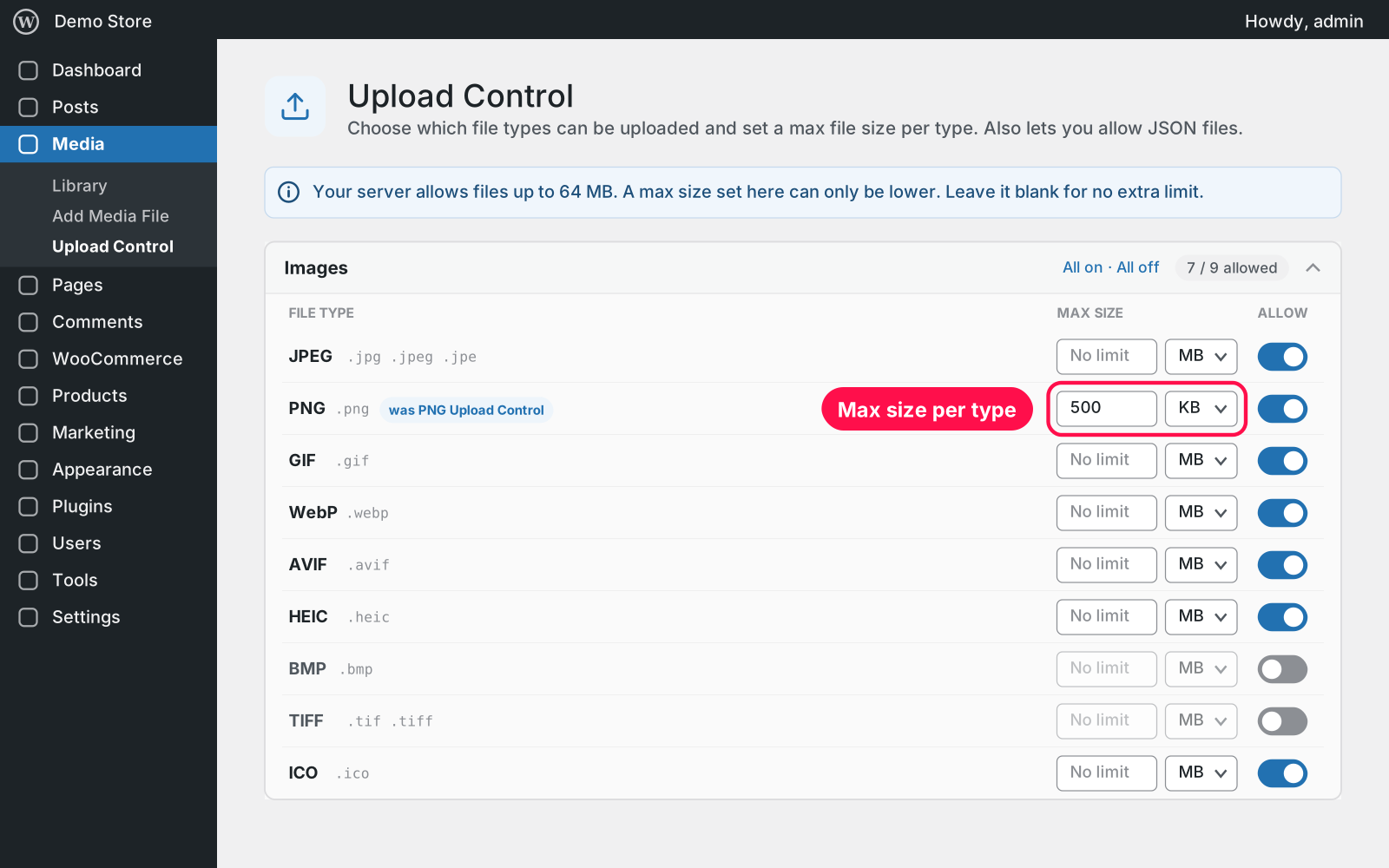
Version 1.0.0WP 6.0+PHP 7.4+Updated Nov 2026Downloads 0

What it does 01

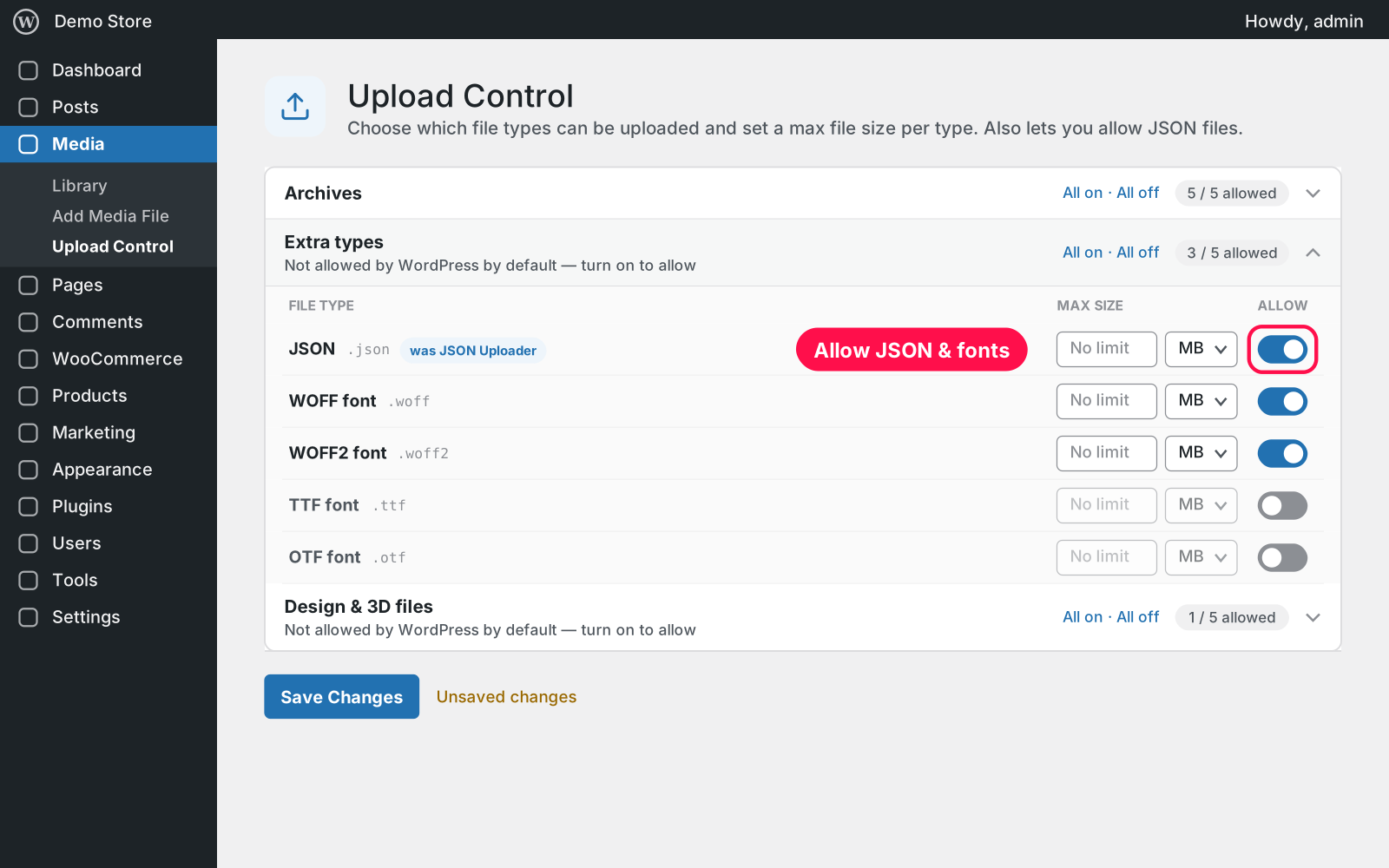
Decide exactly what can be uploaded to your site. Every file type WordPress accepts gets its own switch and an optional size limit, and a few useful types WordPress blocks (JSON, web fonts, SVG and 3D files) can be allowed safely. Everything is on one page under Media.

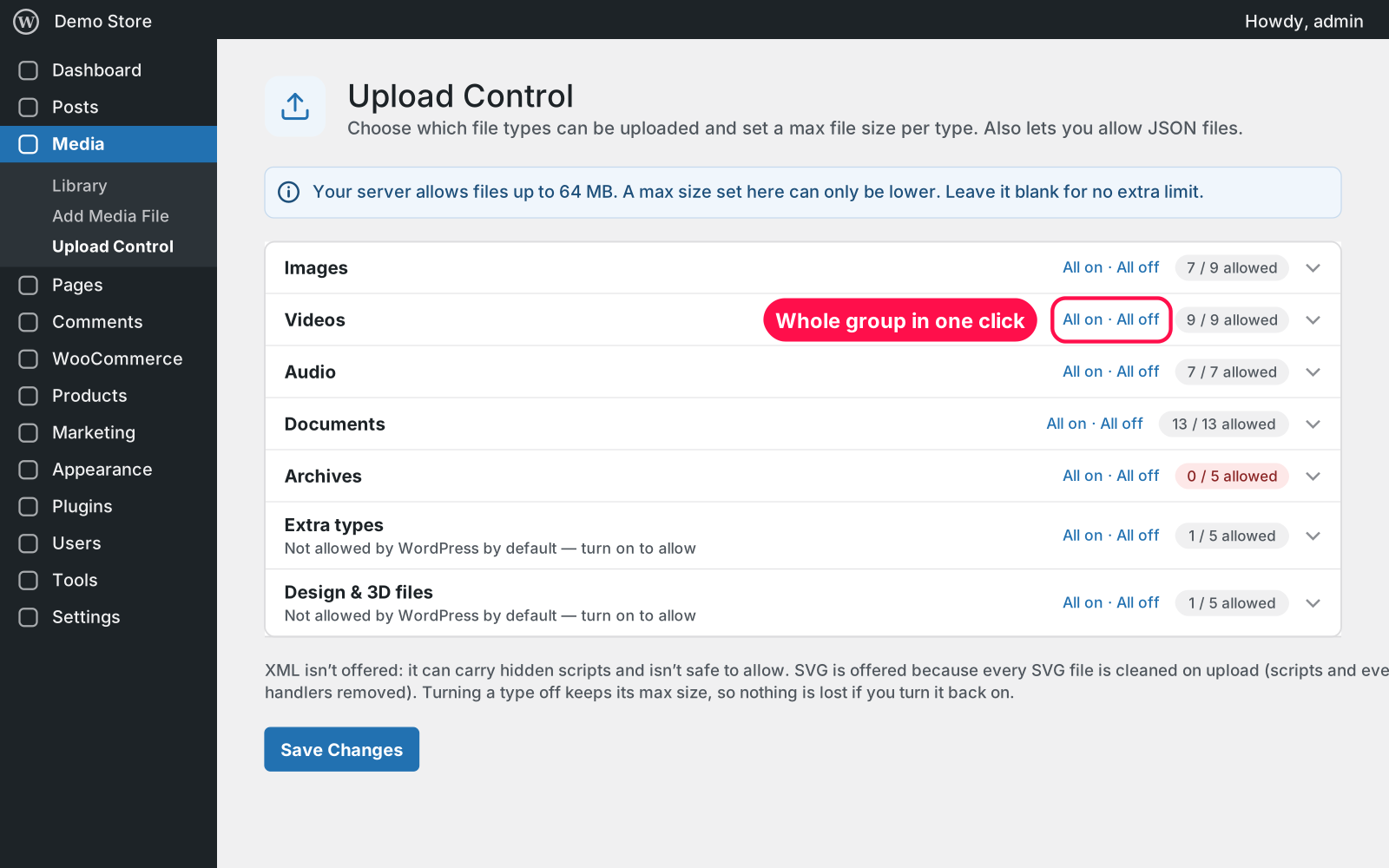
  • Every file type: grouped into Images, Videos, Audio, Documents and Archives, each with an on/off switch.
  • Group switches: "All on / All off" for a whole group, with a live "7 / 9 allowed" count.
  • Max size: set a max file size per type in KB or MB, or leave it blank for no extra limit. The page shows your server's own limit.
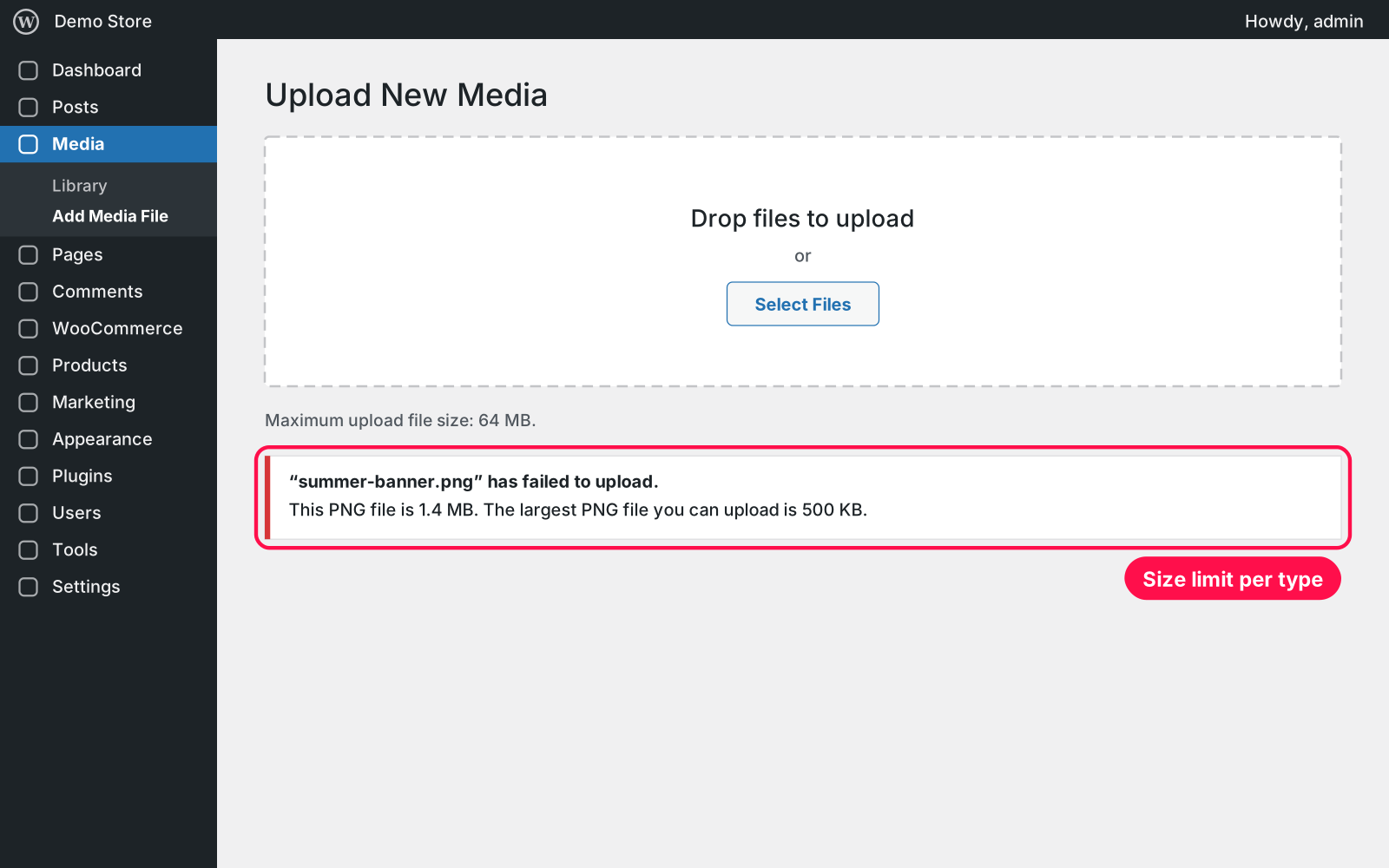
  • Clear refusals: files over the limit are refused with a clear message, e.g. "The largest PNG file you can upload is 500 KB."
  • Extra types: allow types WordPress blocks by default: JSON, and WOFF, WOFF2, TTF and OTF fonts.
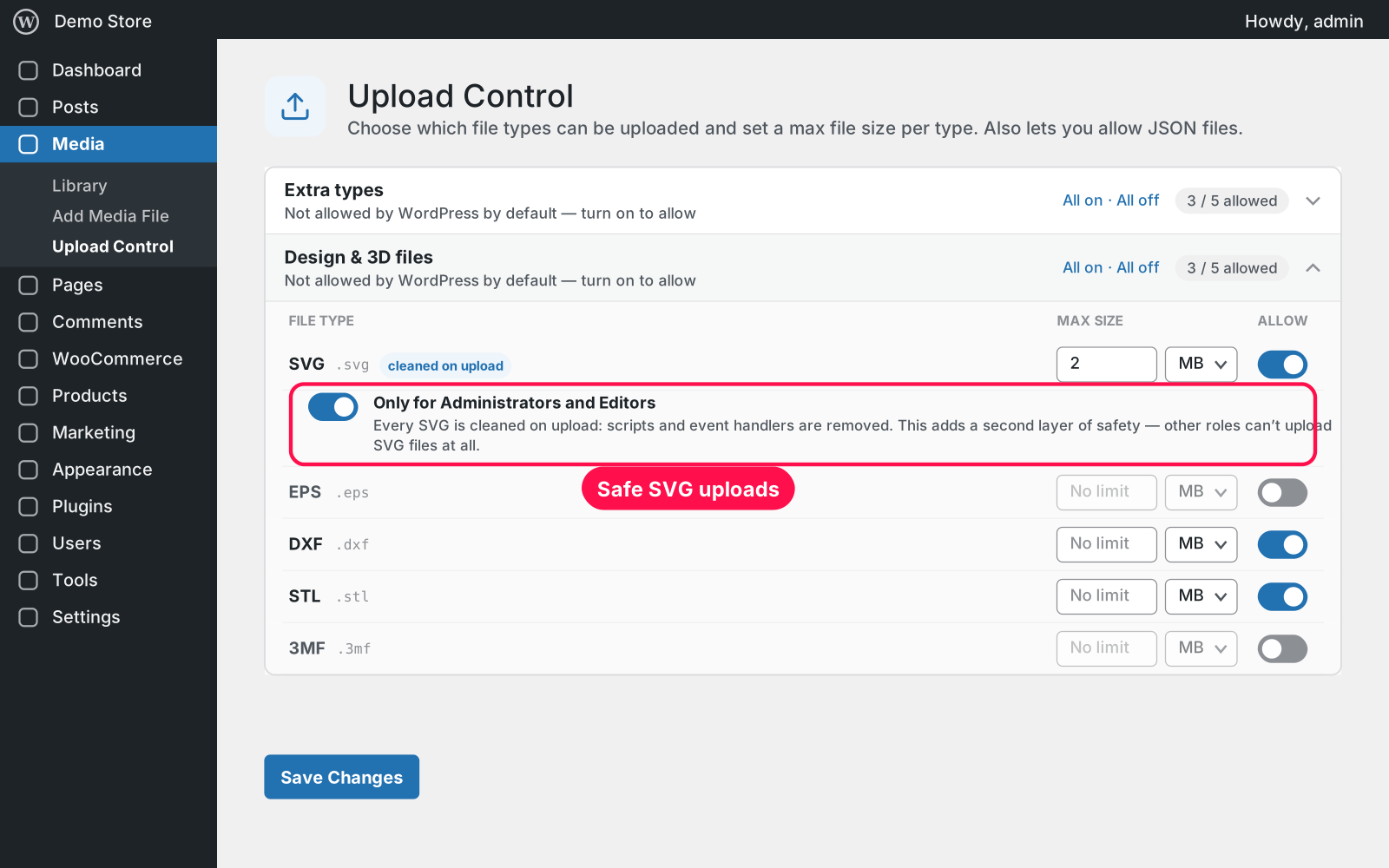
  • Design and 3D: allow SVG, EPS, DXF, STL and 3MF. Their content is checked on upload, so a renamed file can't slip through.
  • SVG safety: every SVG is cleaned on upload (scripts and event handlers removed), and by default only Administrators and Editors can upload SVGs.
  • Exact blocking: only the extension you switch off is blocked, even where WordPress groups several together.
  • No XML: deliberately not offered, because it can carry hidden scripts.
  • Nothing lost: turning a type off keeps its max size, so nothing is lost when you turn it back on.
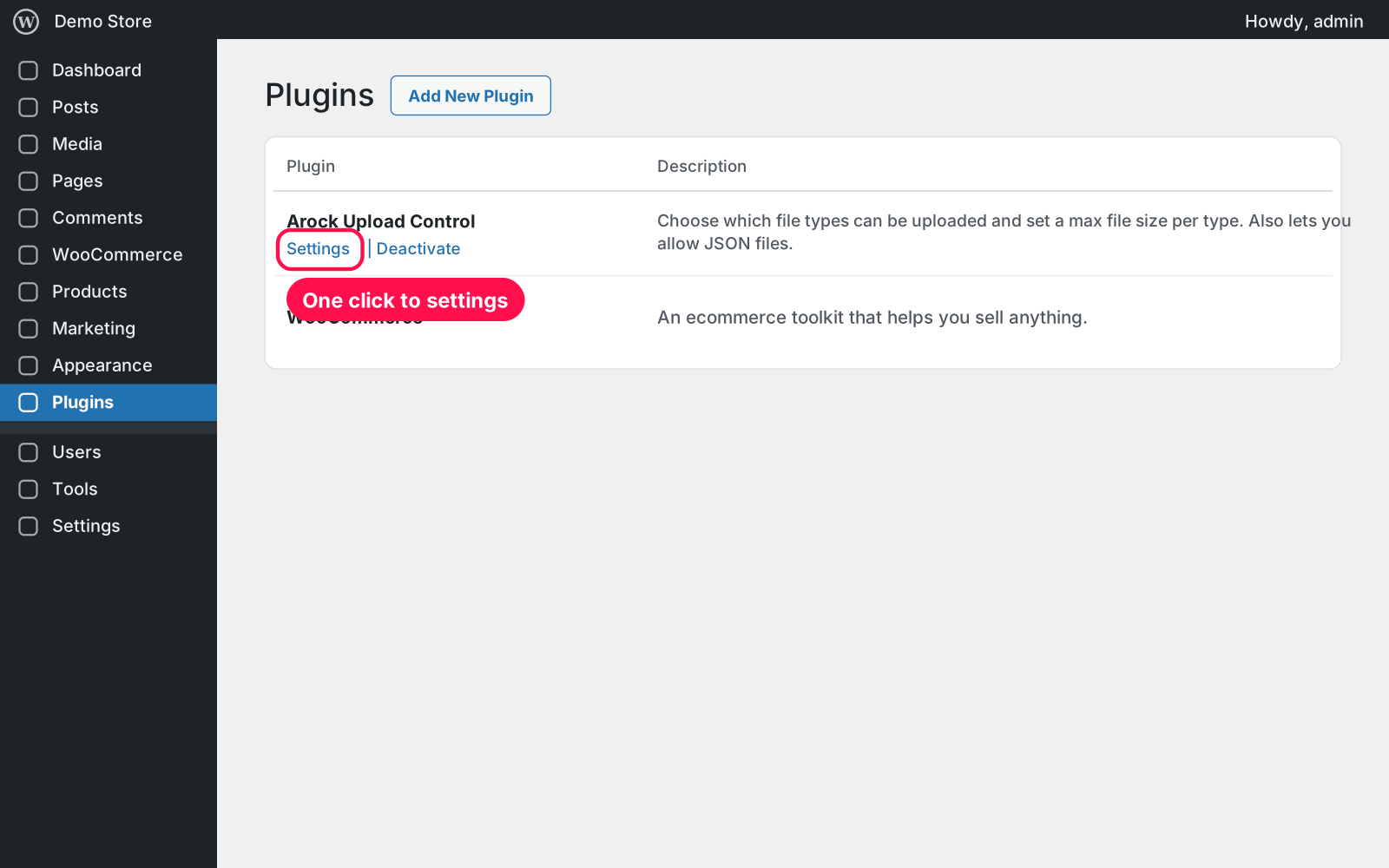
  • Simple setup: one settings page under Media › Upload Control.

Setup 02 · about 2 minutes

  1. Install & Activate it. In WordPress go to Plugins → Add New → Upload Plugin, choose the .zip and click Install Now, then Activate. If PNG Upload Control or JSON Uploader is still active, deactivate it — this plugin waits until you do.
  2. Open the settings. Go to Media › Upload Control.
  3. Choose your file types. Switch types on or off and set a max size where you want one.
  4. Save. Click Save Changes. New uploads follow your rules right away.

FAQ 03

I used the old Media Upload Disabler. Are my settings kept?

Yes. The file types you disabled are imported automatically. Settings from PNG Upload Control (PNG off, max PNG size) and JSON Uploader (JSON allowed) are imported too.

Is it safe to allow SVG files?

Every SVG is cleaned when it's uploaded — scripts and event handlers are removed — and by default only Administrators and Editors can upload SVGs at all.

Does it work with WooCommerce and page builders?

Yes. The rules apply wherever files are uploaded through WordPress: the Media Library, the editor, product images and plugins that use the standard upload.

Is it really free?

Yes. Free forever, no sign-up, no ads, and it doesn't track you.

What happens to my data when I delete the plugin?

Files you already uploaded are never touched. Deleting the plugin keeps your settings too, because Arock Toolkit and other versions of this plugin share them.

Changelog 04

1.0.0Nov 14, 2026 · Latest
  • - First release.
  • - Replaces the older Media Upload Disabler, PNG Upload Control and JSON Uploader plugins and imports their settings.
Need it to do something else?

I customize plugins and build new ones from scratch — same care, made for your site.

Ask me

Comments

Every comment is reviewed before it appears.

No comments yet — questions, ideas and bug reports are all welcome.

Leave a comment

Replying to
Comments are moderated and appear once approved. Your email is only used to notify you of replies.
Thanks! Your comment is awaiting moderation and will appear once it's approved.
Scripts & plugins

More plugins.

All scripts & plugins →
WordPressPremium

Arock Wordpress + WooCommerce Toolkit

20 small WordPress and WooCommerce tools in one lightweight plugin. Switch each tool on or off from one page; only the tools you turn on run.

Buy →
WordPress

Custom User Avatars

Let users pick their profile picture from the Media Library instead of Gravatar. It shows everywhere WordPress shows an avatar. No settings needed.

FreeDownload ↓
WordPress

Original Images Download

Download one ZIP file with every original, full-size image in your Media Library. Built in small batches so big libraries never time out, and stored privately for admins only.

FreeDownload ↓