Home/Scripts & plugins/WordPress/Custom User Avatars
WordPress pluginMediaProductivityWordpressFree

Custom User Avatars

Let users pick their profile picture from the Media Library instead of Gravatar. It shows everywhere WordPress shows an avatar. No settings needed.
Version 1.0.0WP 6.0+PHP 7.4+Updated Nov 2026Downloads 0

What it does 01

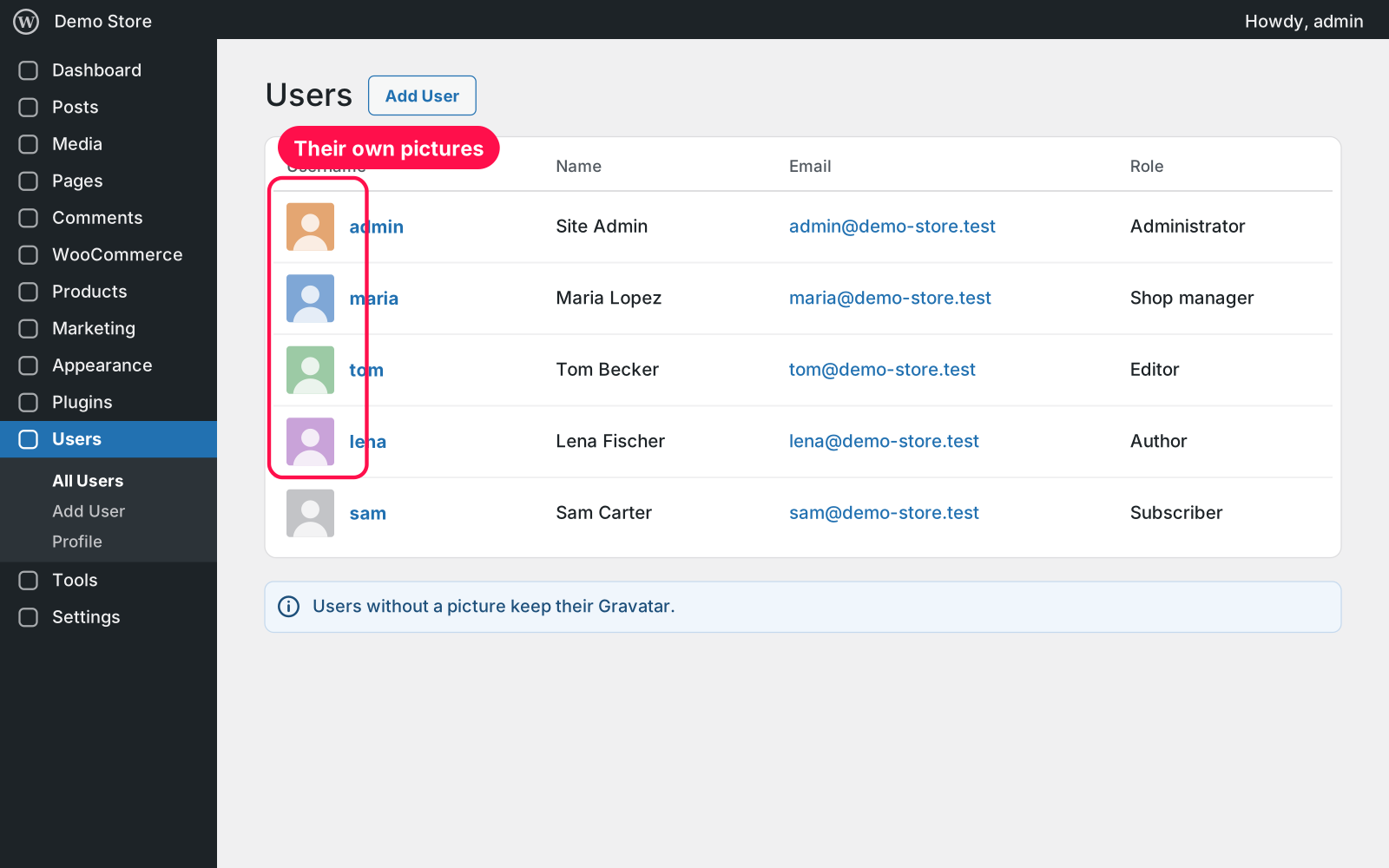
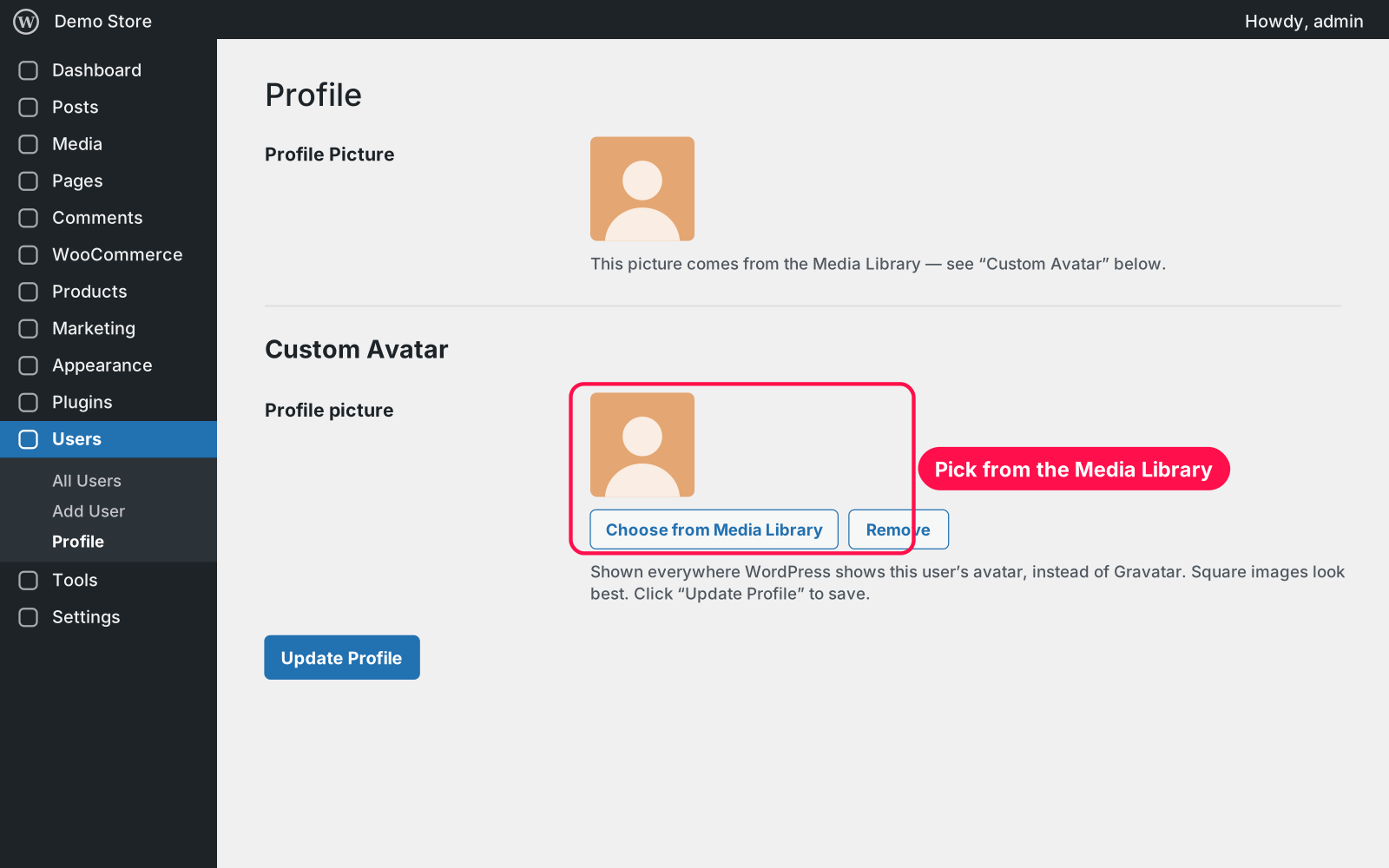
Gives every user profile a "Custom Avatar" field with a "Choose from Media Library" button. The picture you choose replaces Gravatar wherever WordPress shows that user's avatar, so your team, authors and customers get real profile pictures without signing up anywhere.

  • Profile field: adds a "Custom Avatar" section to every user profile.
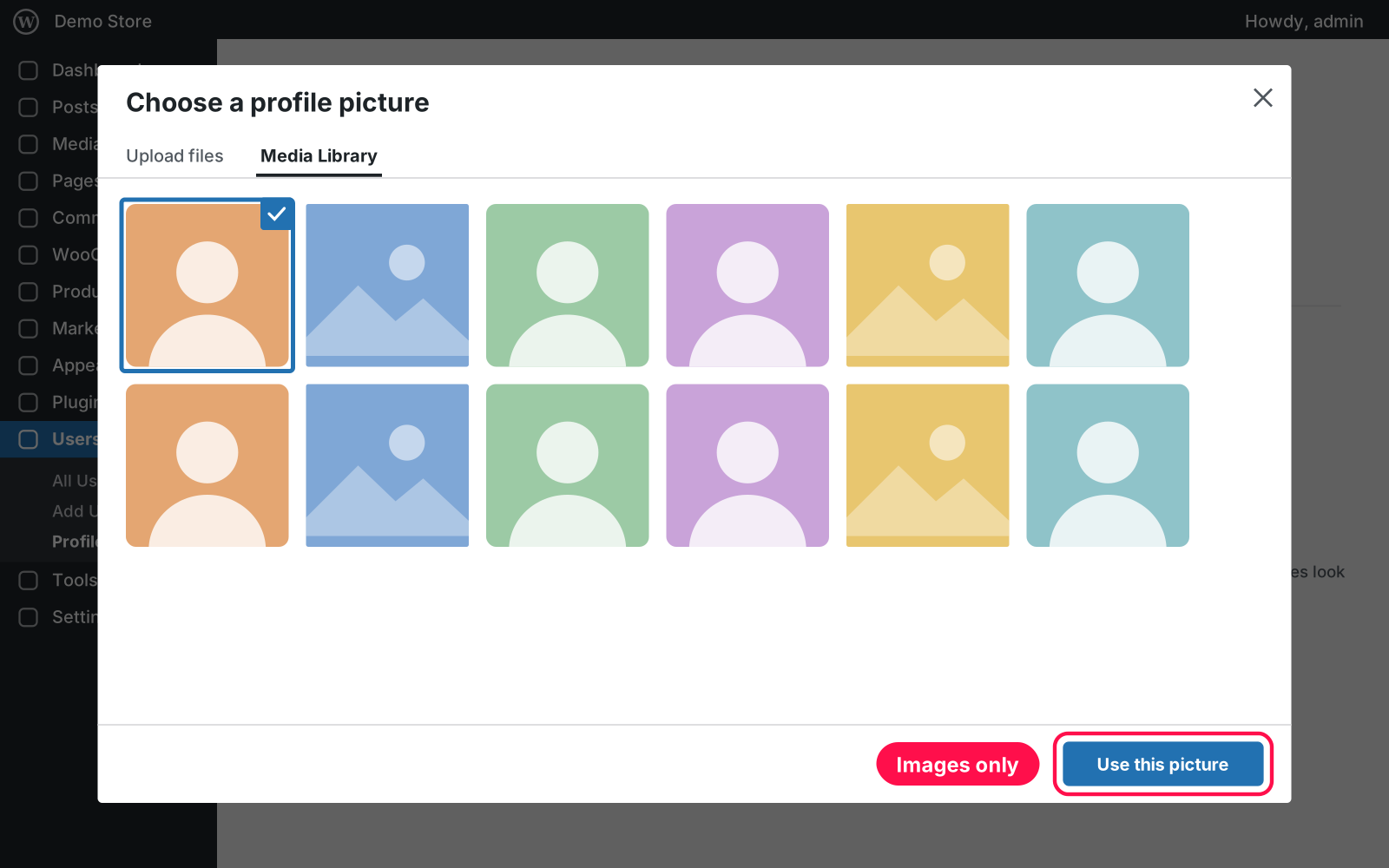
  • Media Library: pick the picture with one button. Only images can be chosen.
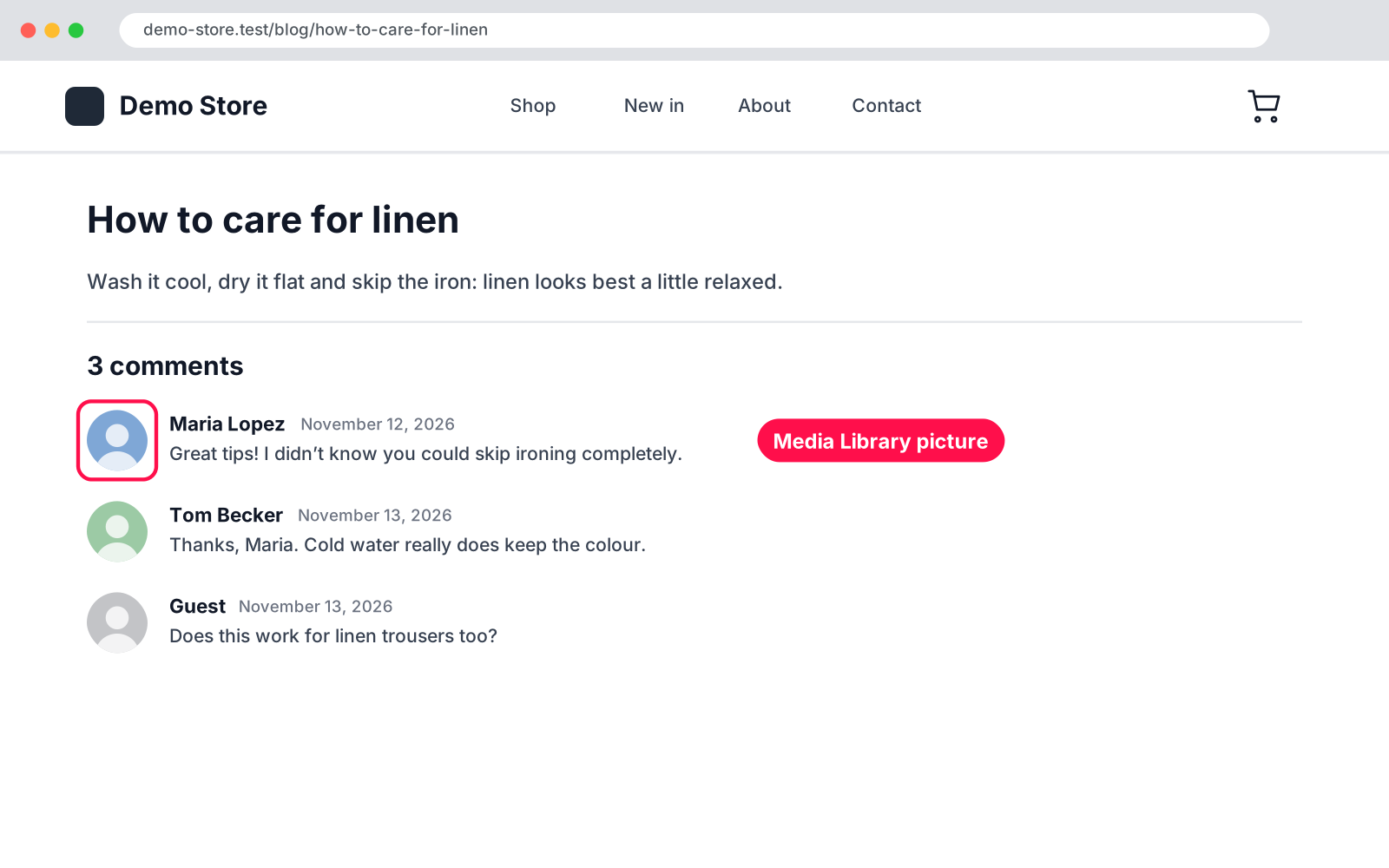
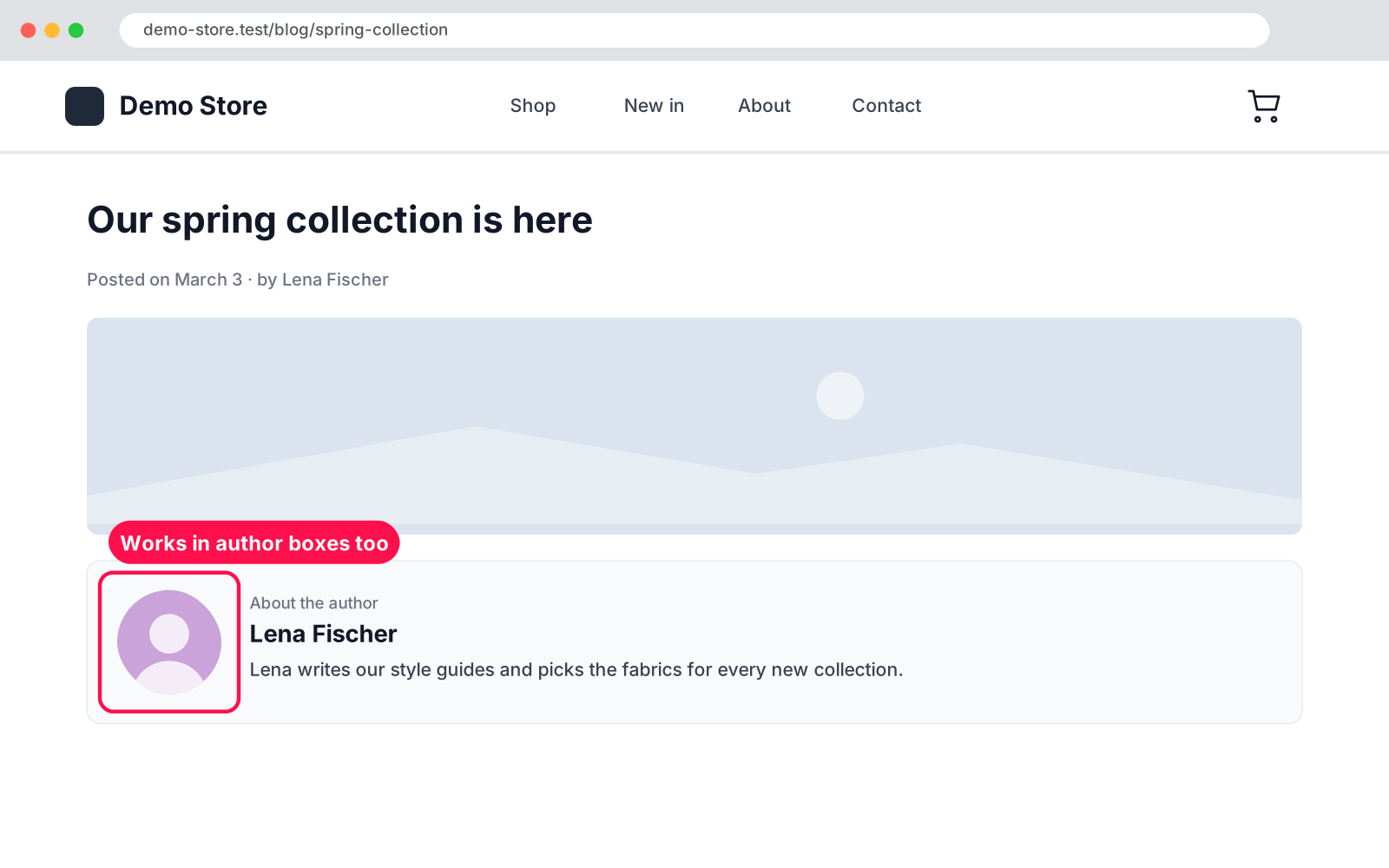
  • Everywhere: replaces Gravatar in the admin bar, Users list, comments, author boxes, the Avatar block and the REST API.
  • Comments: get the right picture too, also when the commenter is matched by email address.
  • Fast: always uses the sharp, small Thumbnail size, so pages stay fast.
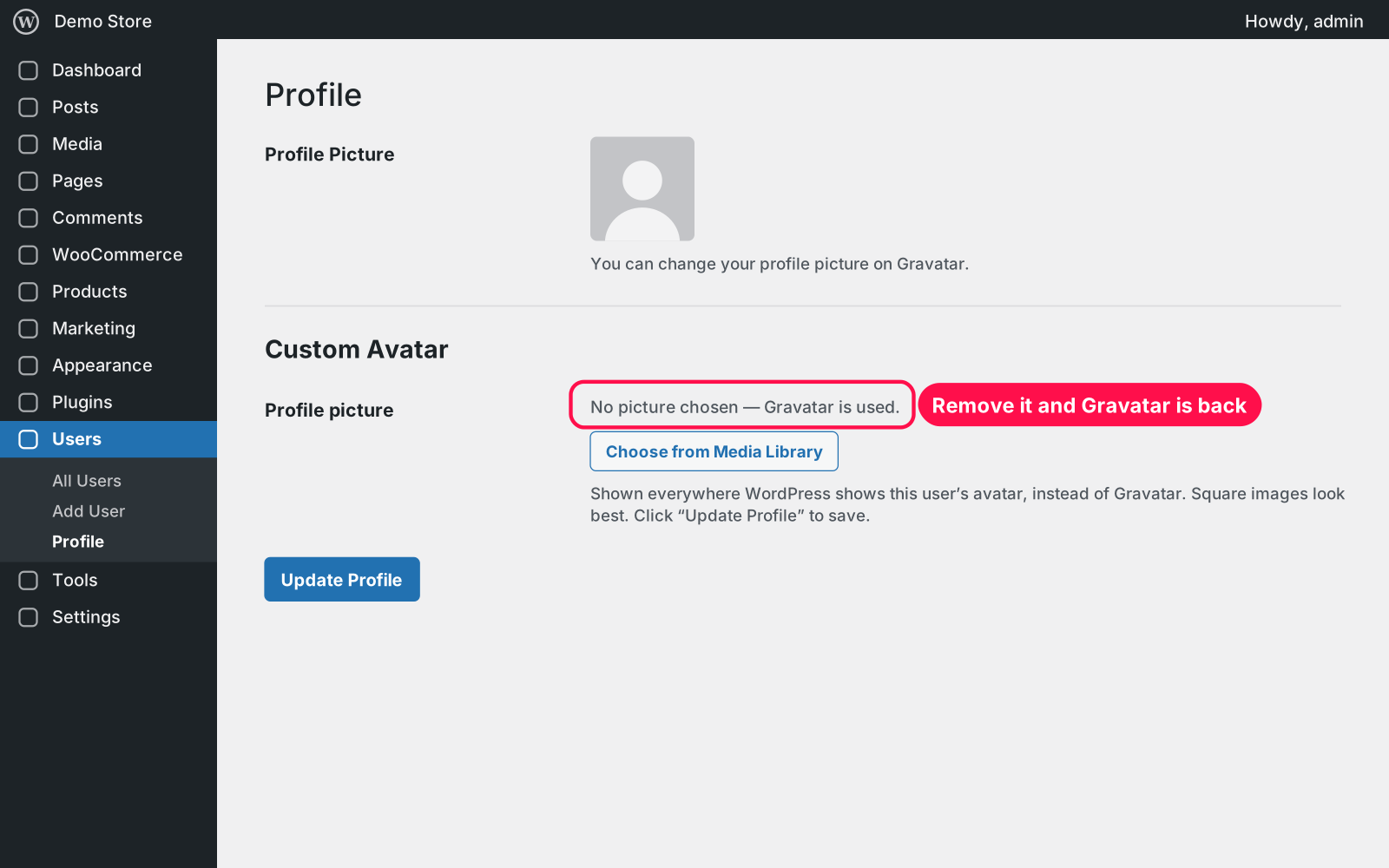
  • Remove: a Remove button brings Gravatar back at any time.
  • Permissions: only people who can upload files can change a picture; others see theirs with a short note.
  • Profile Picture row: points to your custom picture instead of telling you to visit Gravatar.
  • Carry over: pictures chosen with the "NoBS – Custom User Avatars" plugin carry over automatically.
  • No settings: activate it and the field is on every profile.
  • Reversible: deactivate it and Gravatar comes back; everyone's choice stays saved.

Setup 02 · about 1 minute

  1. Install & Activate it. In WordPress go to Plugins → Add New → Upload Plugin, choose the .zip and click Install Now, then Activate.
  2. Open a profile. Go to Users › Profile (or edit any user) and scroll to "Custom Avatar". There are no other settings.
  3. Choose a picture. Click "Choose from Media Library", pick an image, then click Update Profile.

FAQ 03

Does it work with my theme?

Yes, with any theme that shows avatars the standard WordPress way, which is almost all of them, plus the Avatar block.

Who can change their picture?

Everyone who can upload files (by default authors, editors, shop managers and administrators). Administrators can set a picture for any user.

Does it work with page caching?

Yes. After changing a picture, clear your cache once so cached pages show the new one.

Is it really free?

Yes. Free forever, no sign-up, no ads, and it doesn't track you.

What happens to my data when I delete the plugin?

Nothing is lost: the images stay in your Media Library and each user's choice is kept, because Arock Toolkit and other versions of this plugin use the same profile field.

Changelog 04

1.0.0Nov 14, 2026 · Latest
  • - First release as a standalone plugin (the same tool as in Arock Toolkit, with the same profile pictures).
Need it to do something else?

I customize plugins and build new ones from scratch — same care, made for your site.

Ask me

Comments

Every comment is reviewed before it appears.

No comments yet — questions, ideas and bug reports are all welcome.

Leave a comment

Replying to
Comments are moderated and appear once approved. Your email is only used to notify you of replies.
Thanks! Your comment is awaiting moderation and will appear once it's approved.
Scripts & plugins

More plugins.

All scripts & plugins →
WordPressPremium

Arock Wordpress + WooCommerce Toolkit

20 small WordPress and WooCommerce tools in one lightweight plugin. Switch each tool on or off from one page; only the tools you turn on run.
Buy →
WordPress

Simple Duplicate Posts

Copy any post, page, product or custom post type in one click: from the list, bulk actions, admin bar or editor. WPBakery layouts and custom fields included.

FreeDownload ↓
WordPressPremium

Media Upload Control

Choose which file types can be uploaded to your Media Library, set a max file size per type, and safely allow JSON, fonts, SVG and 3D files.

Buy →